
Members, groups and roles
Who can do what in a workspace comes from three things:
- Members: the people in the workspace.
- Roles: what a person may do: view, run reconciliations, work breaks, approve, change settings…
- Groups: people who work the same reconciliations (the AP team, Treasury), so access is given once to the group instead of to each person.
They are in Members (at the bottom of the navigation), on three tabs.
Members
Section titled “Members”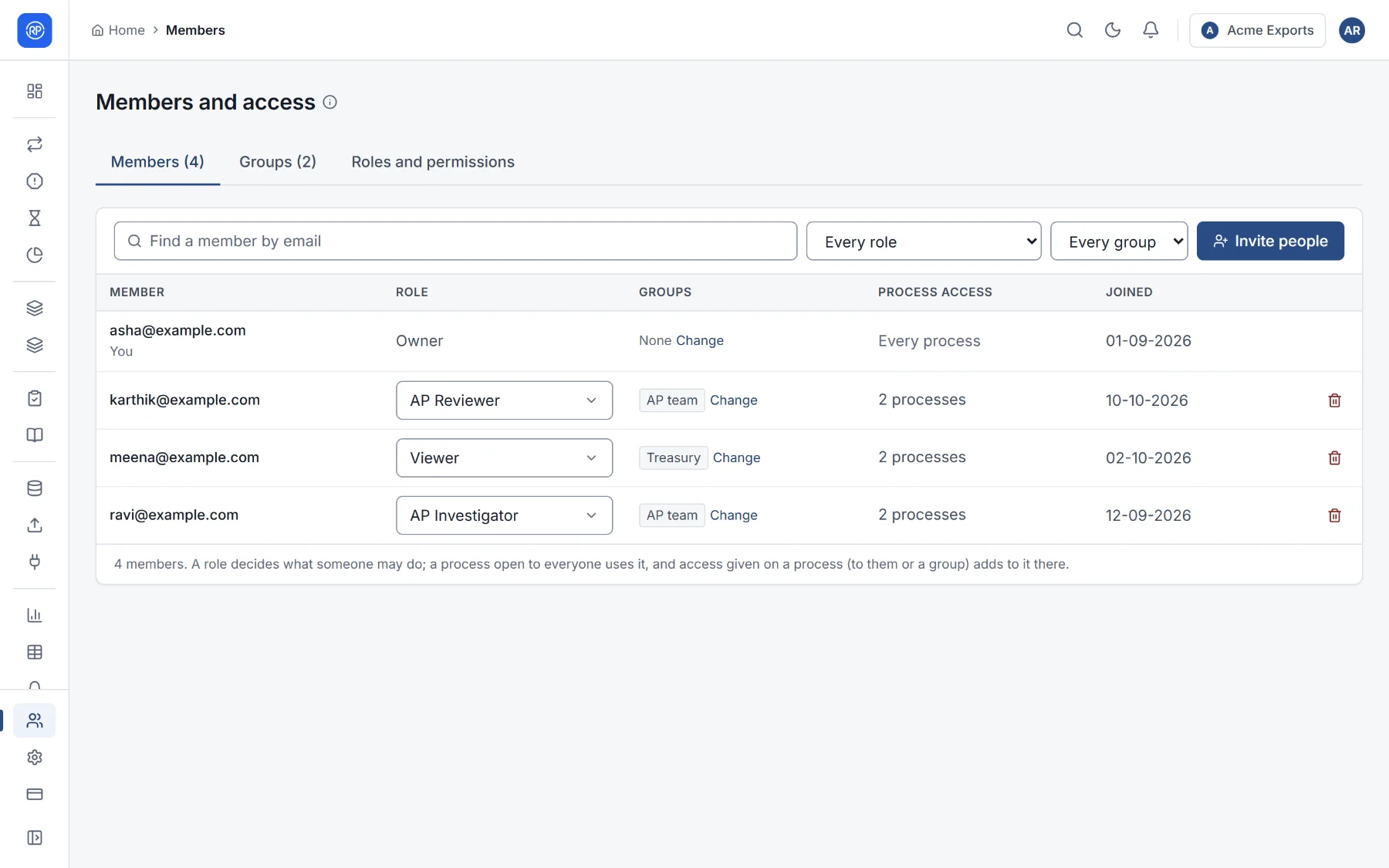
Each member has a role in the workspace, may belong to groups, and may have been given access to particular reconciliations (process access). Find a member by email, or filter by role or group.
Inviting people
Section titled “Inviting people”- Choose Invite people.
- Enter their email and choose their role.
- Send invitation. They receive an email with a link; they open it and sign in with that email address.
If email is not set up for your workspace, RefinePoint shows the invitation link for you to share yourself. Invitations not yet accepted are listed under the members; Cancel invitation withdraws one.
Changing or removing a member
Section titled “Changing or removing a member”Change a member’s role from the list. Remove from the workspace takes their access away at once; their work (comments, approvals, history) stays. Open a member to see what they reach: reconciliations open to everyone with their workspace role, and those given to them, or to their groups, with the role given on each.
The built-in roles
Section titled “The built-in roles”| Role | In short |
|---|---|
| Owner | Everything, including billing and deleting the workspace. A workspace always has an owner. |
| Admin | Everything except what only the owner does: members, roles, settings, access. |
| Member | Day-to-day work: create and change reconciliations, run them, work breaks, upload data. |
| Viewer | Looks without changing anything: results, breaks, reports. |
Owners and admins always have every permission, so a workspace can never lock itself out. Member and Viewer have sensible defaults that your workspace can change. The permissions reference lists exactly what each permission allows and who has it by default.
Your own roles
Section titled “Your own roles”For finer control, create roles of your own: an Investigator who works breaks but cannot approve them, an Approver, an Auditor who sees everything and changes nothing.
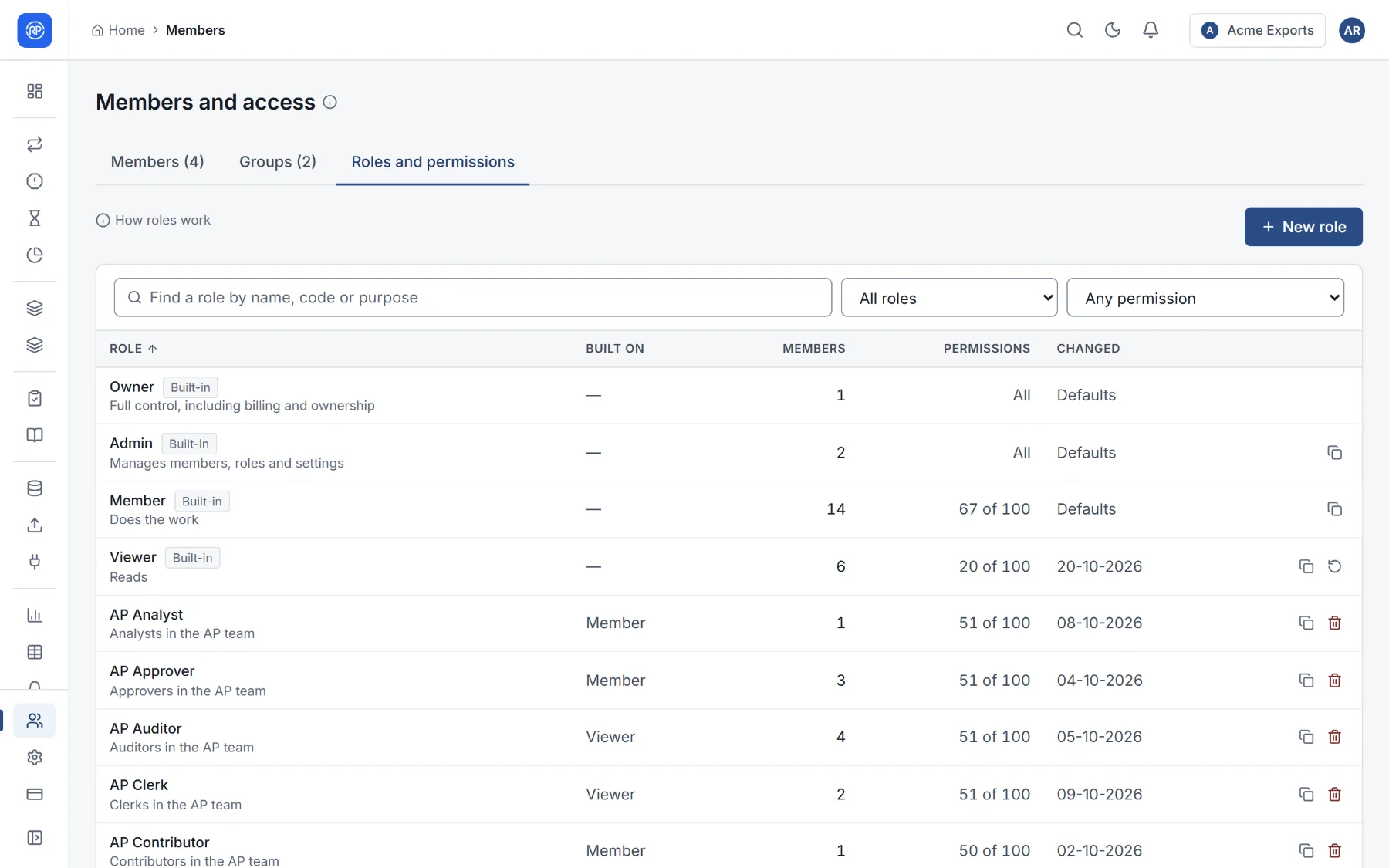
- On the Roles tab, choose New role.
- Give it a name and say what it is for (shown when people pick a role).
- Built on Member or Viewer: it counts as that for plan seats and approvals.
- Start from a copy of an existing role’s permissions, or tick each permission yourself.
- On its page, adjust each permission. Search (approve, journals, export…), show only what you changed, or compare with another role. A permission that needs another (resolving a break needs seeing it) brings it along.
- Save, then give this role to members here, on the Members tab, or when you invite them.
Duplicate copies a role; Reset to defaults puts a built-in role back. Only owners and admins change roles.
Groups and access to particular reconciliations
Section titled “Groups and access to particular reconciliations”By default everyone reaches every reconciliation with their workspace role. To keep a reconciliation to one team:
- On the Groups tab, New group: a name (AP team) and what it is for. Add its members.
- Under Process access, choose Change access and tick the reconciliations the group works, with the role on the processes ticked, such as AP Investigator.
- On each of those reconciliations, set Access to Only the people and groups listed.
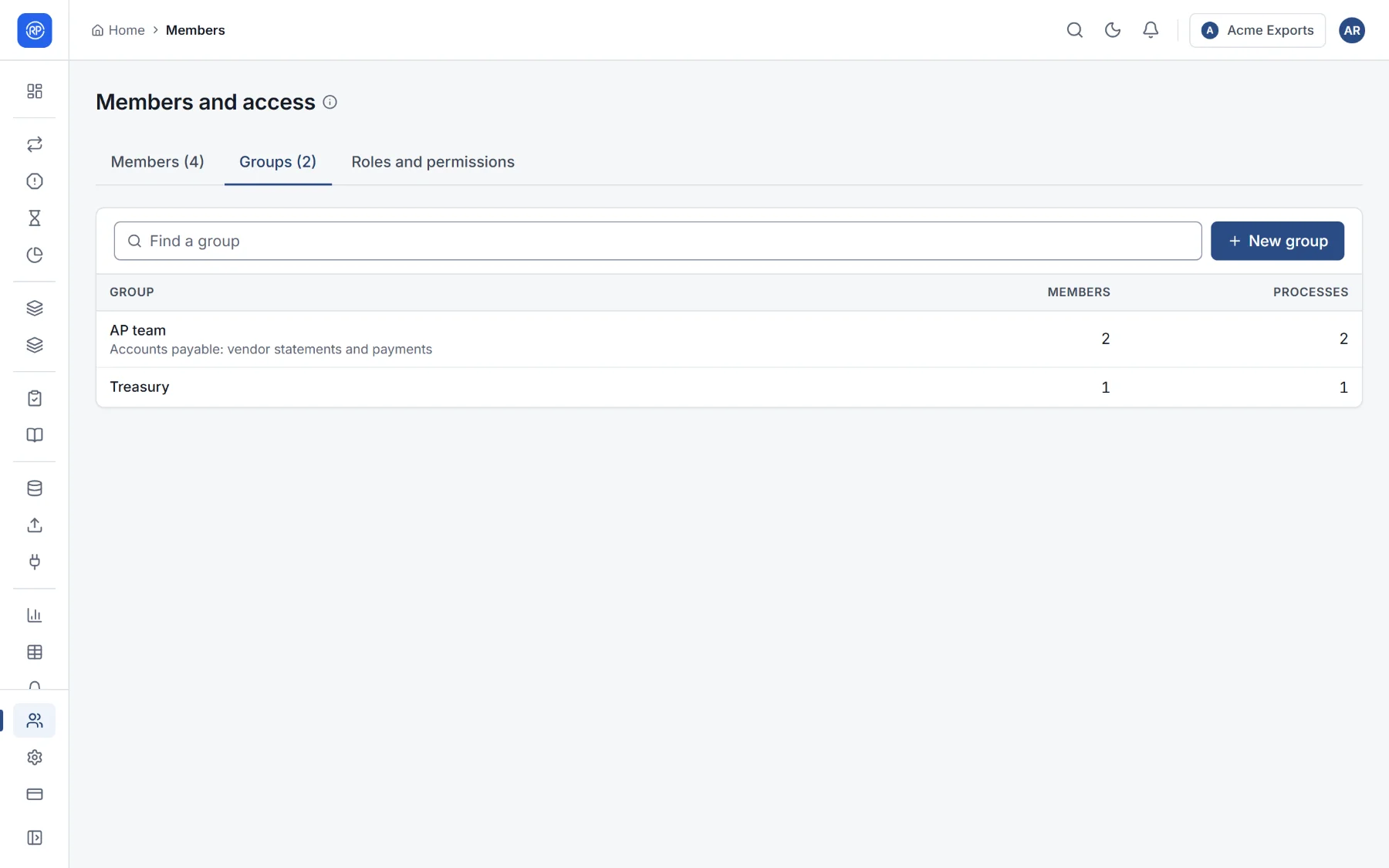
Members of the group then reach those reconciliations with the role given there, and do not see restricted reconciliations of other teams. Deleting a group takes away the access given to it; its members stay in the workspace.