
Alerts
Alerts tell you when something needs attention: a run failed, a run found a large variance, breaks are overdue, a change is waiting for approval, a file arrived. They are in Reports and monitoring → Alerts, and the bell in the top bar shows how many you have not read.
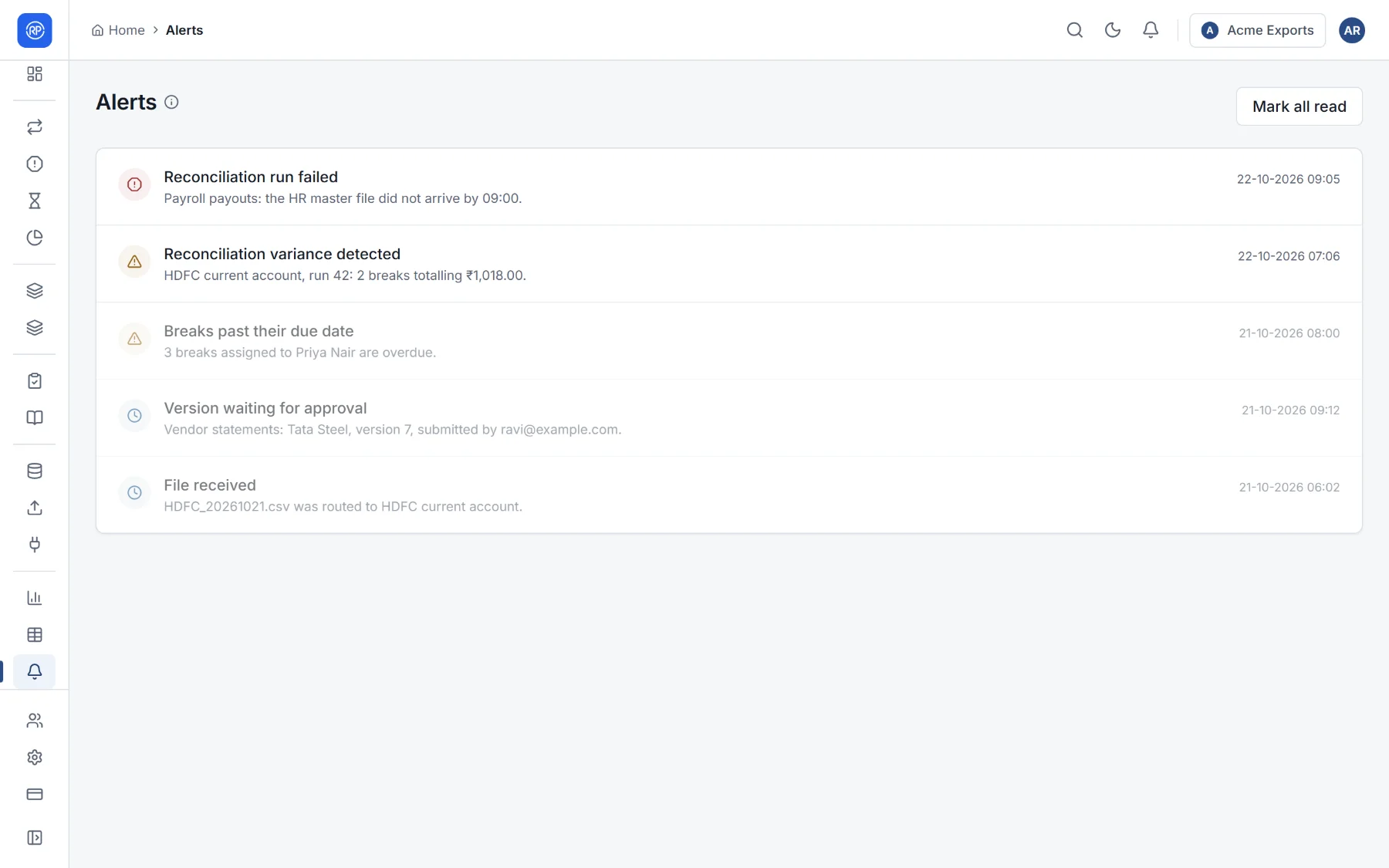
Each alert has a severity (Error, Warning or Info), a title, what happened and when. Select one to mark it read, or Mark all read.
Alert rules
Section titled “Alert rules”Alerts always appear in the app. Alert rules also send them by email or to a chat tool. They are in Settings → File checks, at the top.
- Give the rule a name, such as Email the admins when a run fails.
- Choose the event: Run failed or Variance detected, and the severity.
- Tick Email to email the workspace’s owners and admins, and/or paste a webhook URL: a Slack or Microsoft Teams incoming
webhook, or any
https://address. The message format is chosen from the address. - Save, then Send a test notification to check it arrives.
If AI is on, Describe the rule fills it in from a sentence.
Daily reminders
Section titled “Daily reminders”Separately from alerts, on weekday mornings each person receives an email of the breaks assigned to them that are overdue or due within two days, when email is set up for your workspace.