
Fields
Two files seldom call the same thing by the same name. The bank says Txn Ref, the cash book says Voucher No; one has Amount, the other Debit and Credit. Fields are the common names every side is mapped onto — Reference, Date, Amount — so they can be compared. They are set up in step 3 of the designer.
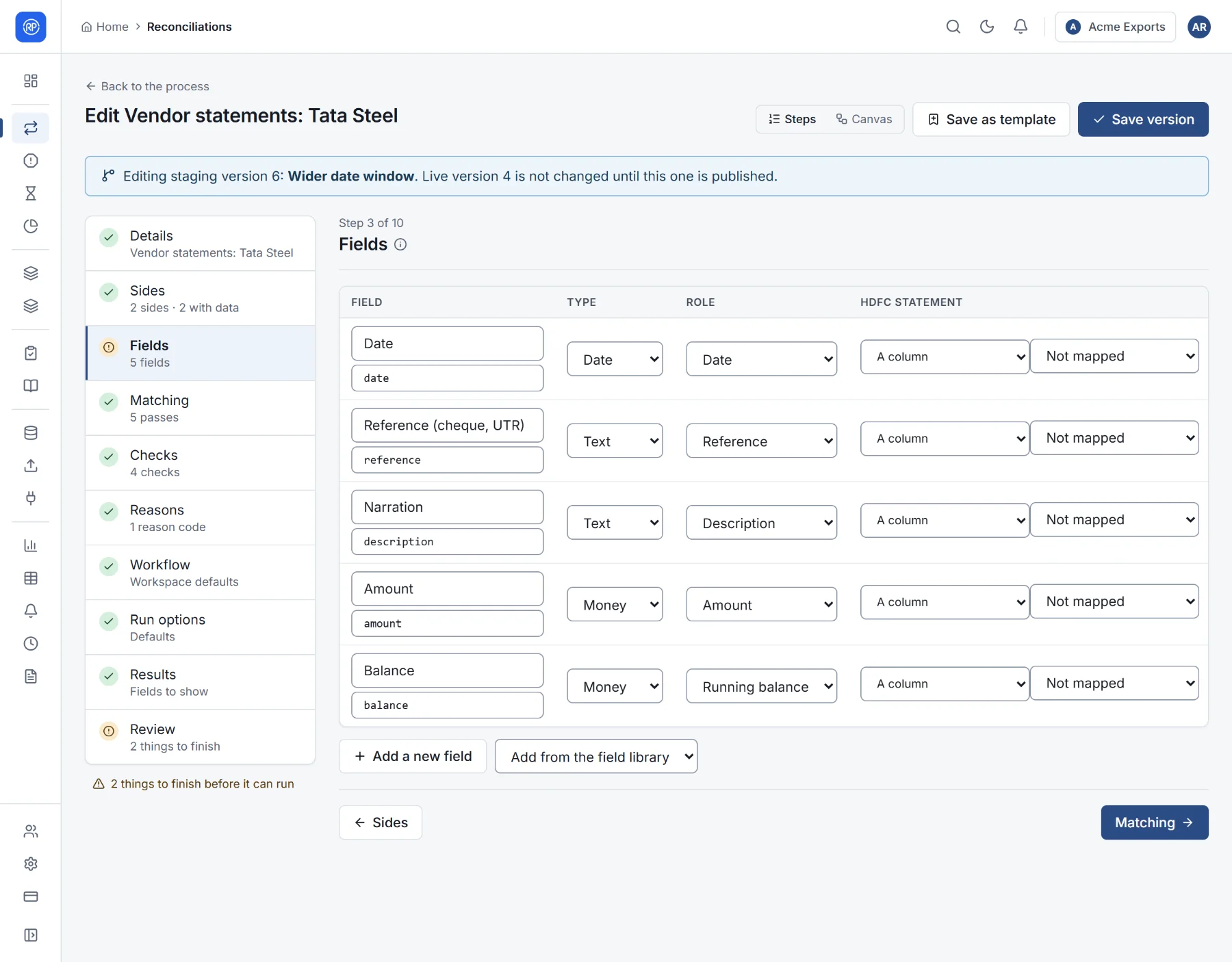
A field’s settings
Section titled “A field’s settings”| Setting | Meaning |
|---|---|
| Label | The name people see, such as Reference (cheque, UTR). |
| Name used in rules | A short name without spaces, used when writing rules: reference, amount. |
| Type | Text, Number, Money or Date. It decides how values are compared: 1,250.50 and 1250.5 are the same money; 01/10/2026 and 2026-10-01 are the same date. |
| Role | What the field means: Reference, Date, Amount, Party, Currency, Tax ID (GSTIN), Quantity, Price, Account, Running balance, Description or Other. Matching passes, checks and reports use the role, for example to know which field is the amount. |
| One column per side | Where each side reads the field from. |
Where a side reads a field from
Section titled “Where a side reads a field from”For each side, choose how the field gets its value:
- A column: the usual case. Choose the column; columns are suggested from names your workspace mapped before and from similar names.
- Debit and credit columns (Money fields only): for statements with separate Debit and Credit columns. The amount is worked out as credit less debit, so money in is positive and money out is negative.
- An expression: a value worked out from several columns with a rule, for example a
reference cleaned of spaces:
[upper case] [remove spaces from] column "Ref No".
A side can leave a field not mapped if it does not have it; that field is then simply empty on that side.
The field library
Section titled “The field library”Fields your workspace uses again and again can be kept in the field library (Settings → Library):
- Add from the field library adds a ready-made field with its type and role.
- Save to the field library (the bookmark icon on a field) keeps one of yours for next time.