
File checks
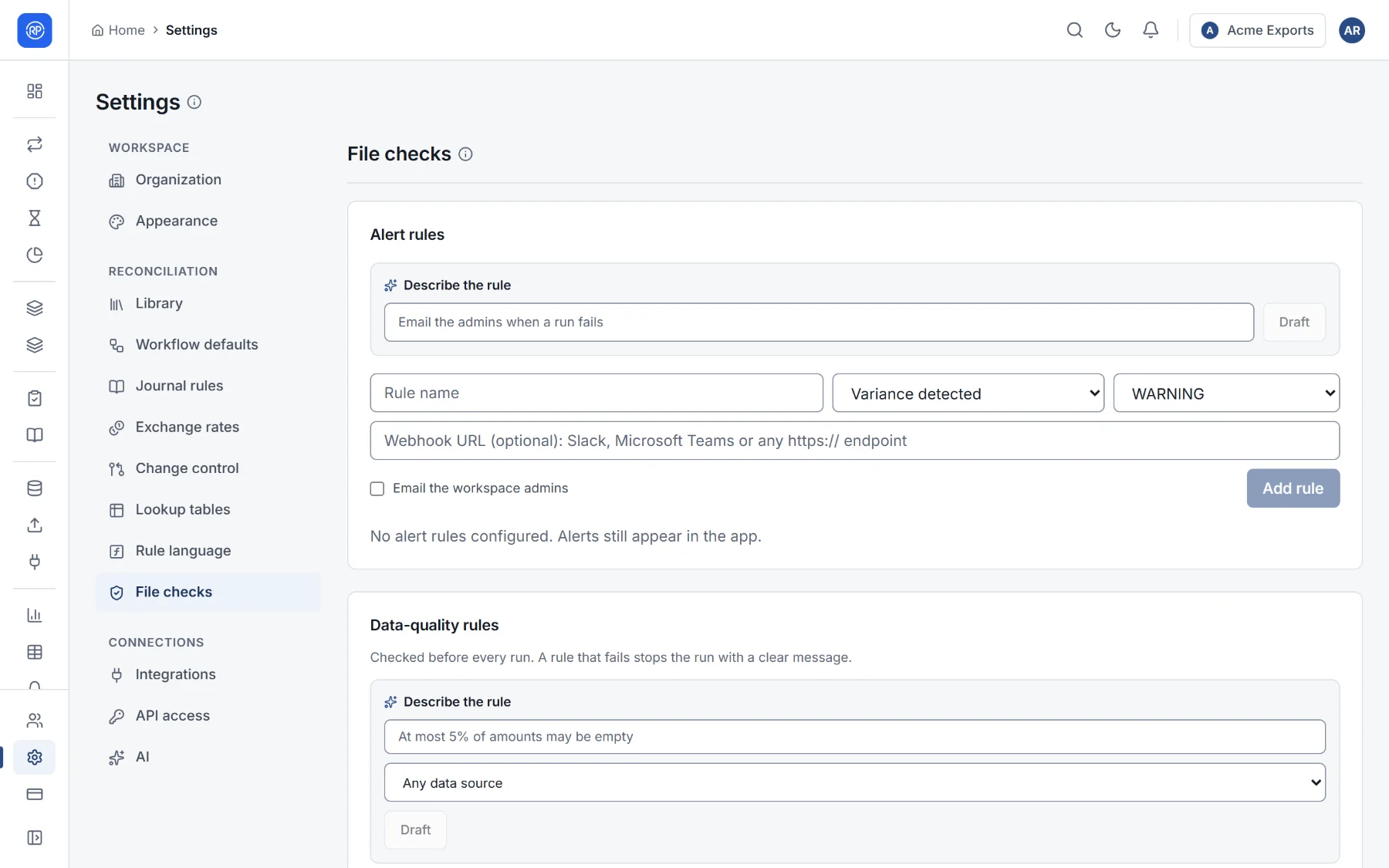
File checks look at the files before a reconciliation runs. If a file is not what you expect (a column is missing, or most amounts are empty because someone exported the wrong report), the run stops straight away with a clear message, instead of producing hundreds of false breaks.
They are in Settings → File checks, under Data-quality rules.
The two kinds of rule
Section titled “The two kinds of rule”| Rule | What it does | Example |
|---|---|---|
| Column must exist | The run stops if the column is missing from either file. | Amount must exist. |
| Limit empty values | The run stops if more than a share of the column is empty. The share is written as a fraction: 0.05 means 5%. |
At most 5% of Amount may be empty. |
A rule can apply to any data source or to one in particular.
Adding a rule
Section titled “Adding a rule”- Under Data-quality rules, give the rule a name, for example Amounts present.
- Choose the rule type, the column name, and for Limit empty values the largest share allowed.
- Choose which data source it checks, or leave Any data source.
- Add it.
If AI is on in your workspace, Describe the rule writes it for you from a sentence such as At most 5% of amounts may be empty. Check what it filled in before adding it.
Alert rules on the same page
Section titled “Alert rules on the same page”The top of the page holds alert rules: who is told, and how, when a run fails or finds a large variance. They are explained in Alerts.