
Breaks
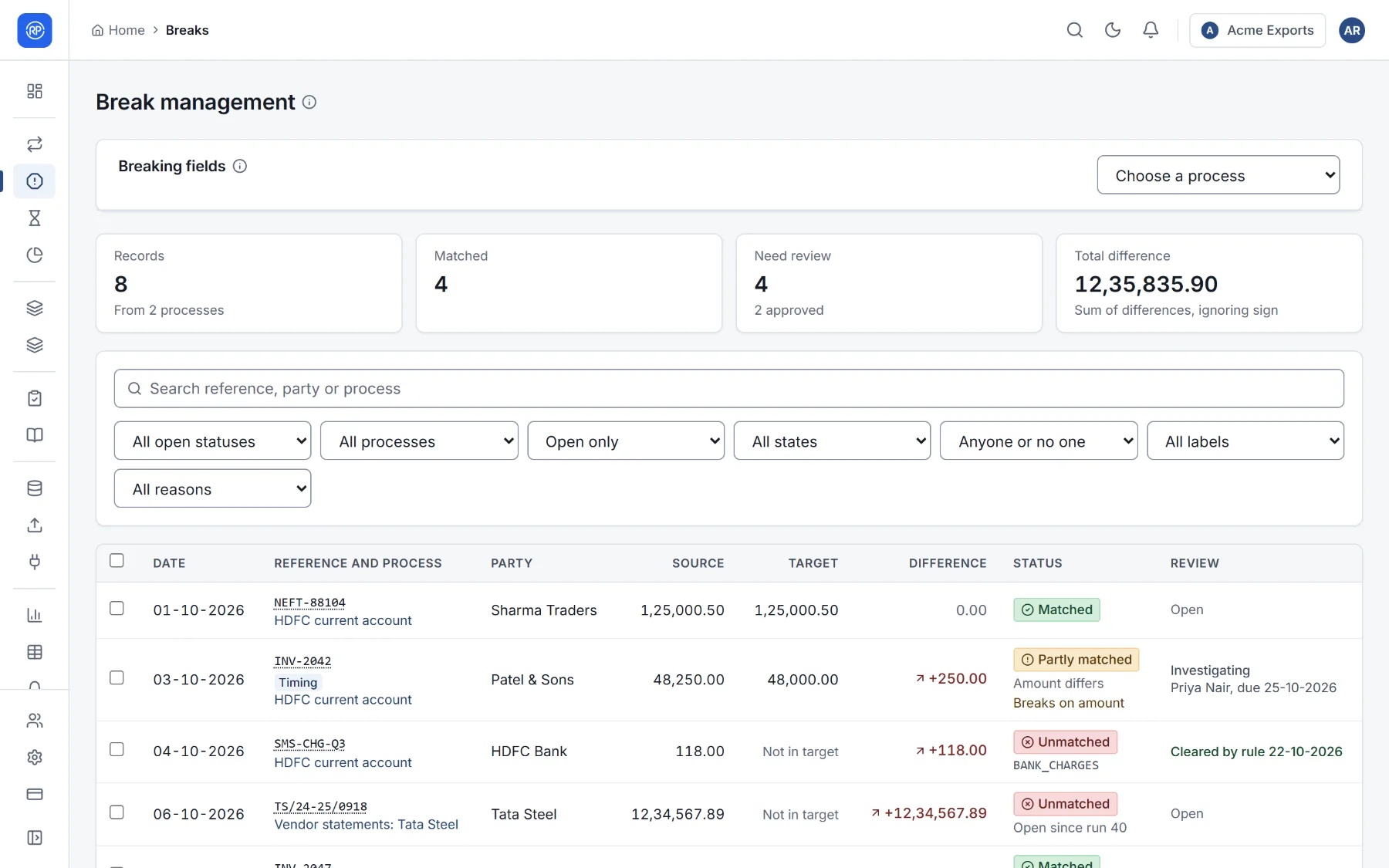
A break is a record that needs a person: it did not match, it matched with a difference, or it appears twice. The Breaks page (Reconcile → Breaks) is where your team works them, from open to resolved.
Start with the breaking fields
Section titled “Start with the breaking fields”Breaking fields, at the top, shows for one reconciliation’s latest run which fields cause the most breaks, for example Amount 55%, Party 23%, No counterpart 30%.
The list
Section titled “The list”The list works like Results, showing open breaks by default: totals, the same filters (status, process, review, workflow state, Assigned to me, label, reason) and the same columns.
Working a break
Section titled “Working a break”Open a break to see it in full:
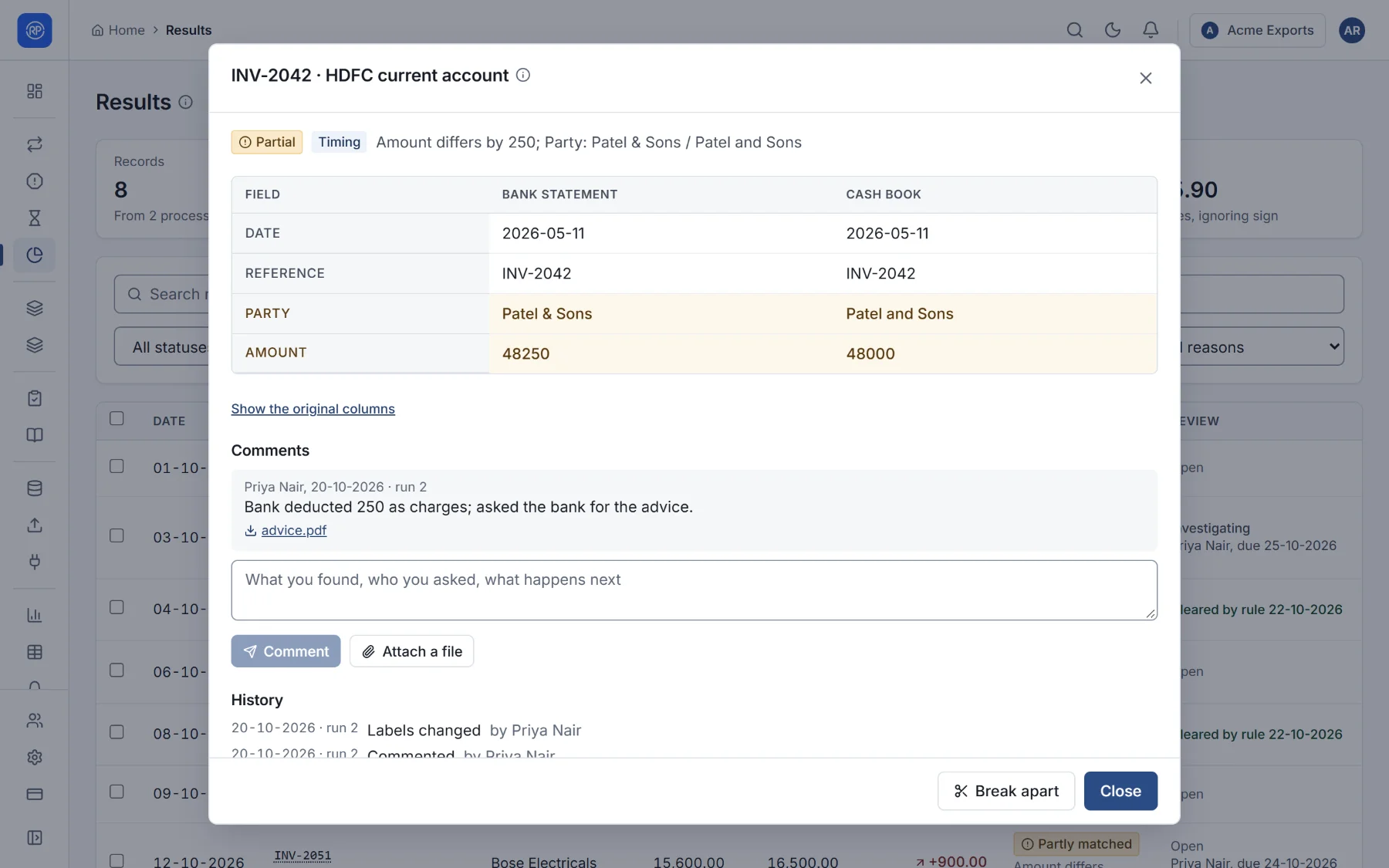
- Fields side by side: every field on each side, with the ones that differ highlighted.
- Comments: what you found, who you asked, what happens next. Attach a file, such as the bank’s advice or an email, as evidence.
- History: everything that happened to it, who did it and when: assigned, labelled, moved, commented, resolved.
- Break apart: undoes a match that should not have been made (you are asked why); the records become unmatched again.
The life of a break
Section titled “The life of a break”- Open. A run finds it. Workflow rules may assign it, label it and give it a due date straight away.
- Investigating. Someone is looking into it. Assign it, label it, comment.
- Resolved, in one of three ways:
- it was a real match the passes missed: select the records and Match by hand;
- it is explained (a timing difference, a known charge): move it to a resolved state with a comment;
- it needs an adjustment: Raise journals from it (see Journals).
- Approved. If second-person approval is on, the resolution waits until someone other than the proposer approves it. Until then it shows Waiting for approval.
The states (their names, which ones count as resolved, which need a comment) are your workspace’s own: see Workflow defaults.
Deadlines and reminders
Section titled “Deadlines and reminders”- Breaks can get a due date when they are created (by workflow rules or the reconciliation’s deadline) or when assigned.
- Overdue breaks escalate at the interval set in the workflow.
- On weekday mornings, each person receives an email listing the breaks assigned to them that are overdue or due within two days, when email is set up for your workspace.
Breaks that clear themselves
Section titled “Breaks that clear themselves”Breaks with a known explanation can be cleared automatically by reason codes. They show as Cleared by rule with the date, and are approved with the rule recorded as the reviewer.