
Workspace settings
Settings (at the bottom of the navigation) holds what the whole workspace shares. Each reconciliation’s own settings are in its designer. You see the sections your role allows; most changes need an admin.
| Section | What is there | Explained in |
|---|---|---|
| Organization | Name, code, industry, currency, regional formats | Below |
| Appearance | Colours and light or dark theme | Below |
| Library | Reconciliation types, templates, the field library | Below |
| Workflow defaults | Break states, labels, default approval, deadlines and workflow rules | Below |
| Journal rules | Rules that raise journals from records | Journals |
| Exchange rates | Rates for converting currencies | Below |
| Change control | Whether changes to live reconciliations need approval | Versions and approval |
| Lookup tables | Reference data for rules | Lookup tables |
| Rule language | The guide, every function, your own functions, and a place to try rules | Writing rules |
| File checks | Alert rules, and checks on files for wizard reconciliations | File checks, Alerts |
| Integrations | Connected services such as Airtable | Integrations |
| API access | API keys | The API |
| AI | Whether AI is on, and what it may see | Below |
Organization
Section titled “Organization”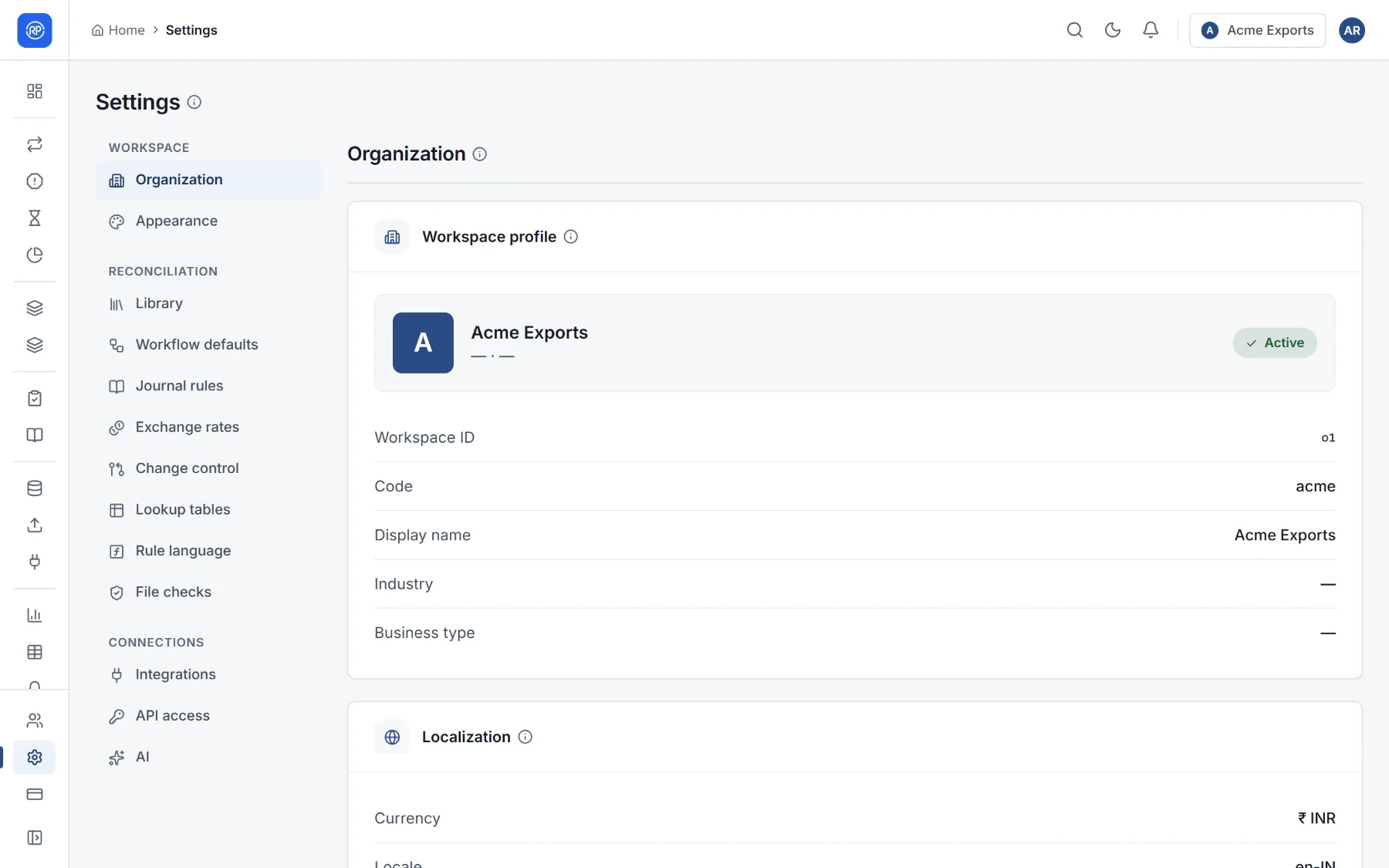
- Workspace profile: the workspace ID and code (fixed), its display name and industry.
- Localization: the default currency, the locale (which decides how numbers are written, such as
1,25,000.50or125,000.50) and the date format used across the workspace.
Appearance
Section titled “Appearance”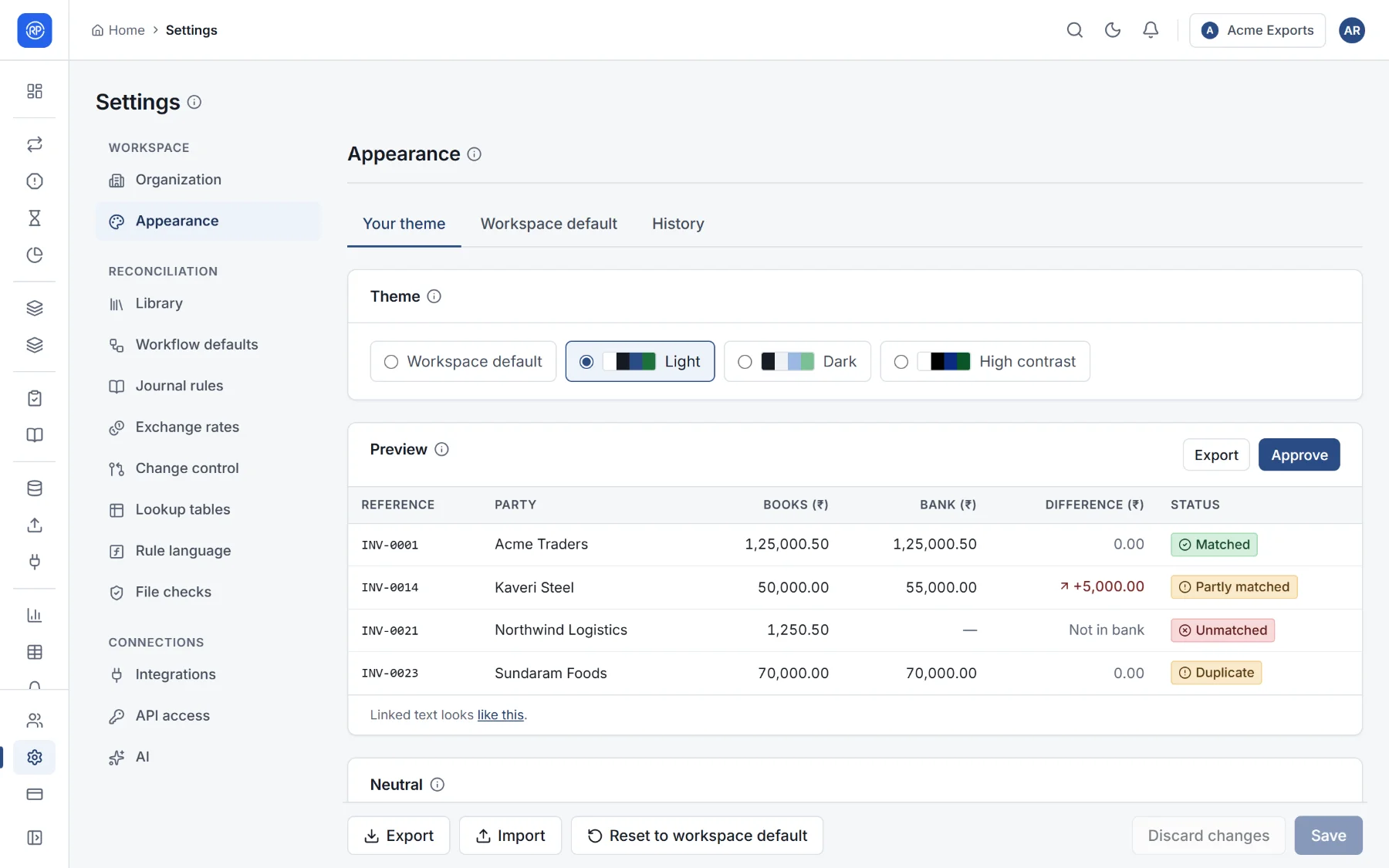
- Your theme: light, dark, high contrast, or the workspace default, just for you.
- Workspace default: what everyone sees unless they choose otherwise; admins can change its colours, for example to your brand, with a live preview. Export a theme to reuse it elsewhere, or import one.
- History: every change to the workspace default, newest first.
Library
Section titled “Library”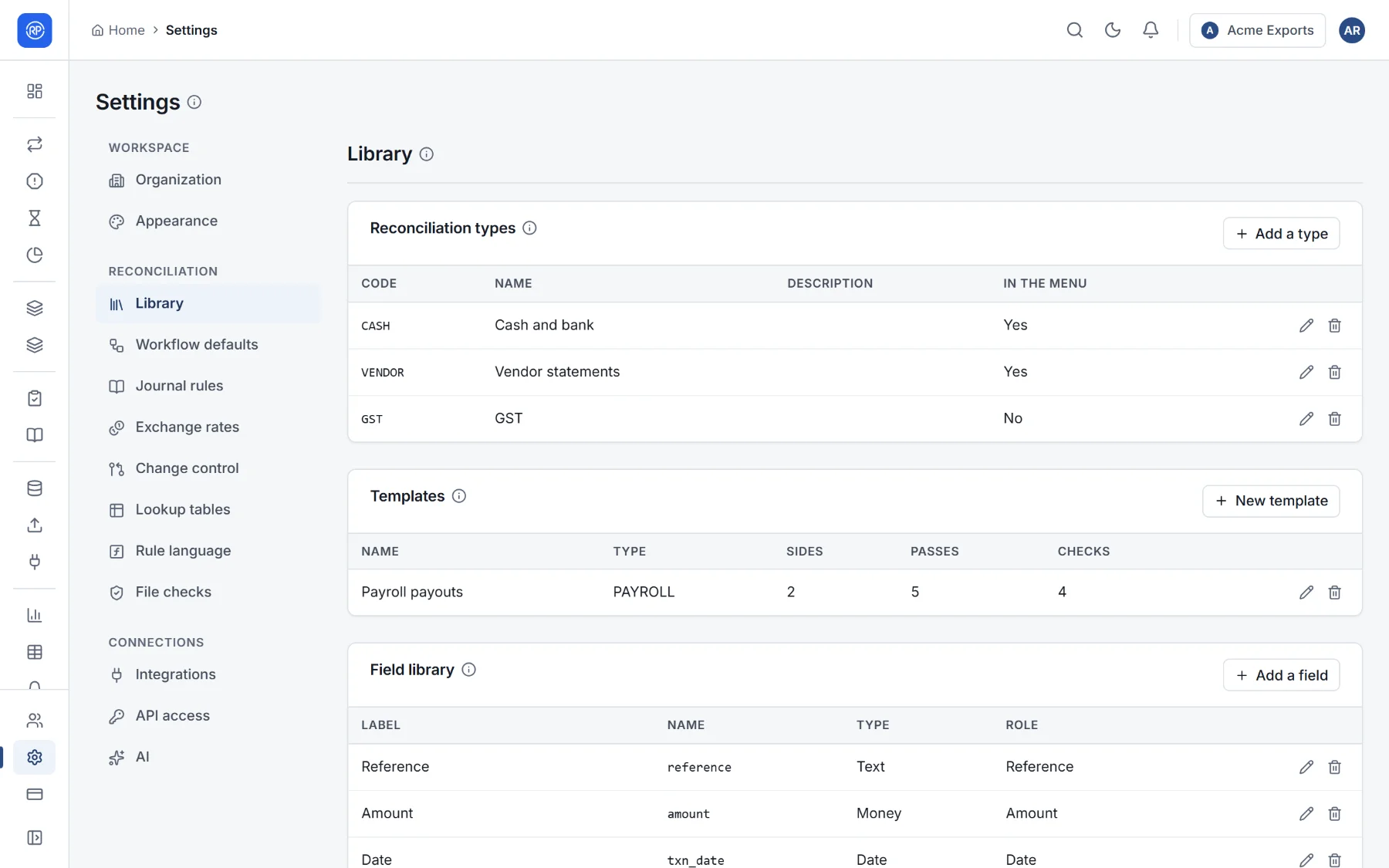
- Reconciliation types: the kinds of reconciliation in your workspace (Cash and bank, Vendor statements, GST…), each with a code, a name and a description. A type shown in the menu gets its own results page in the navigation.
- Templates: starting points for new reconciliations. Make one from scratch, from an example, or with Save as template in the designer. The examples that come with RefinePoint are available until you make your own. See the templates reference.
- Field library: fields with their type and role that the designer offers ready-made. See Fields.
Workflow defaults
Section titled “Workflow defaults”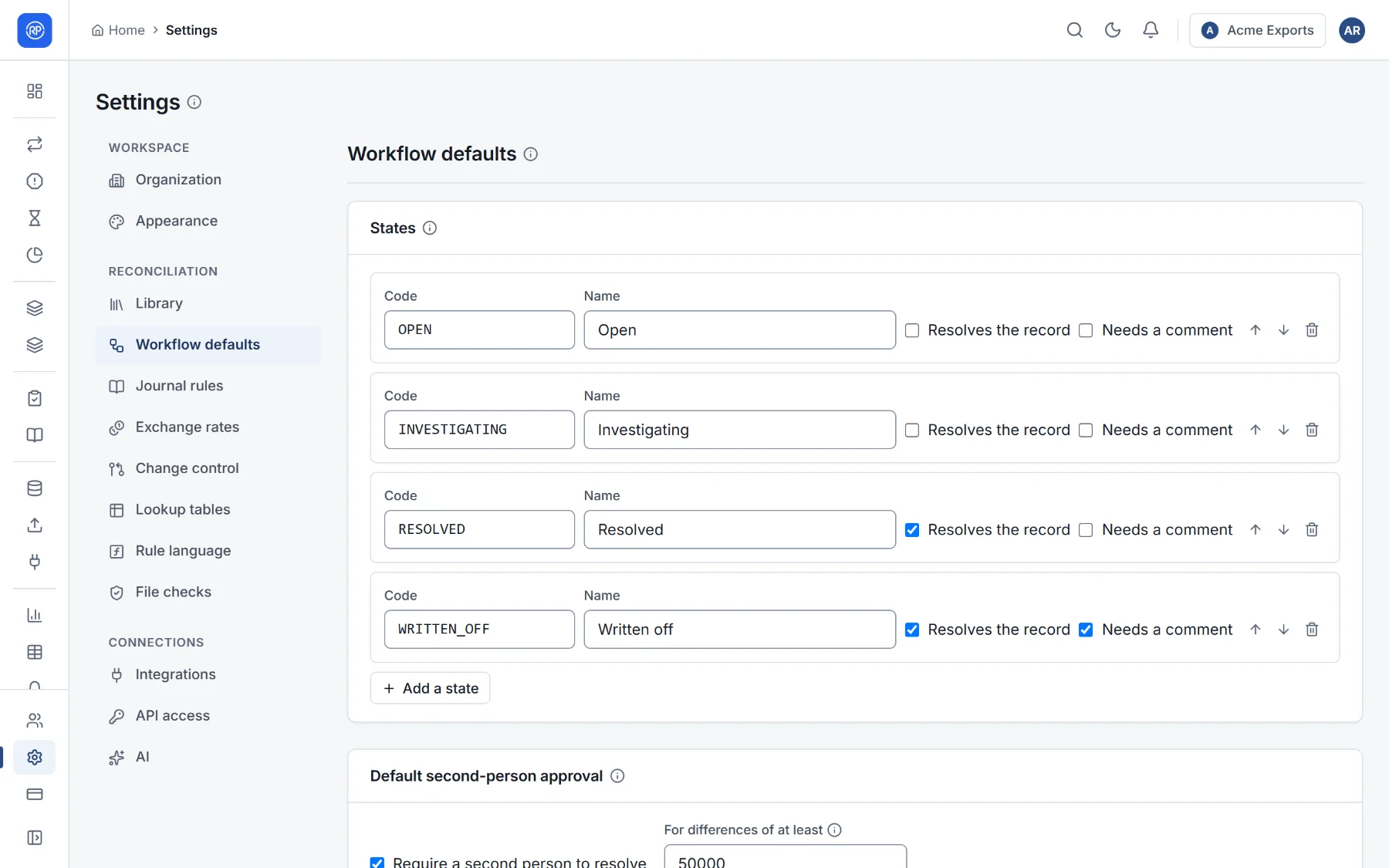
- States: the states every break moves through, in every reconciliation, such as Open, Investigating, Resolved, Written off. Each has a code and a name; the first open state is where new breaks start, and a resolving state settles the break. Choose whether a state needs a comment. Reorder with the arrows.
- Labels: the tags people put on breaks, such as Timing or Ask bank.
- Default second-person approval: a resolution proposed by one person waits until someone else approves it, optionally only for differences of at least an amount.
- Default deadlines: a due date a number of days after the run, and escalation every so many days.
- Default workflow rules: who gets new breaks, their due date and label, by rule.
Each reconciliation can set its own; see Workflow.
Exchange rates
Section titled “Exchange rates”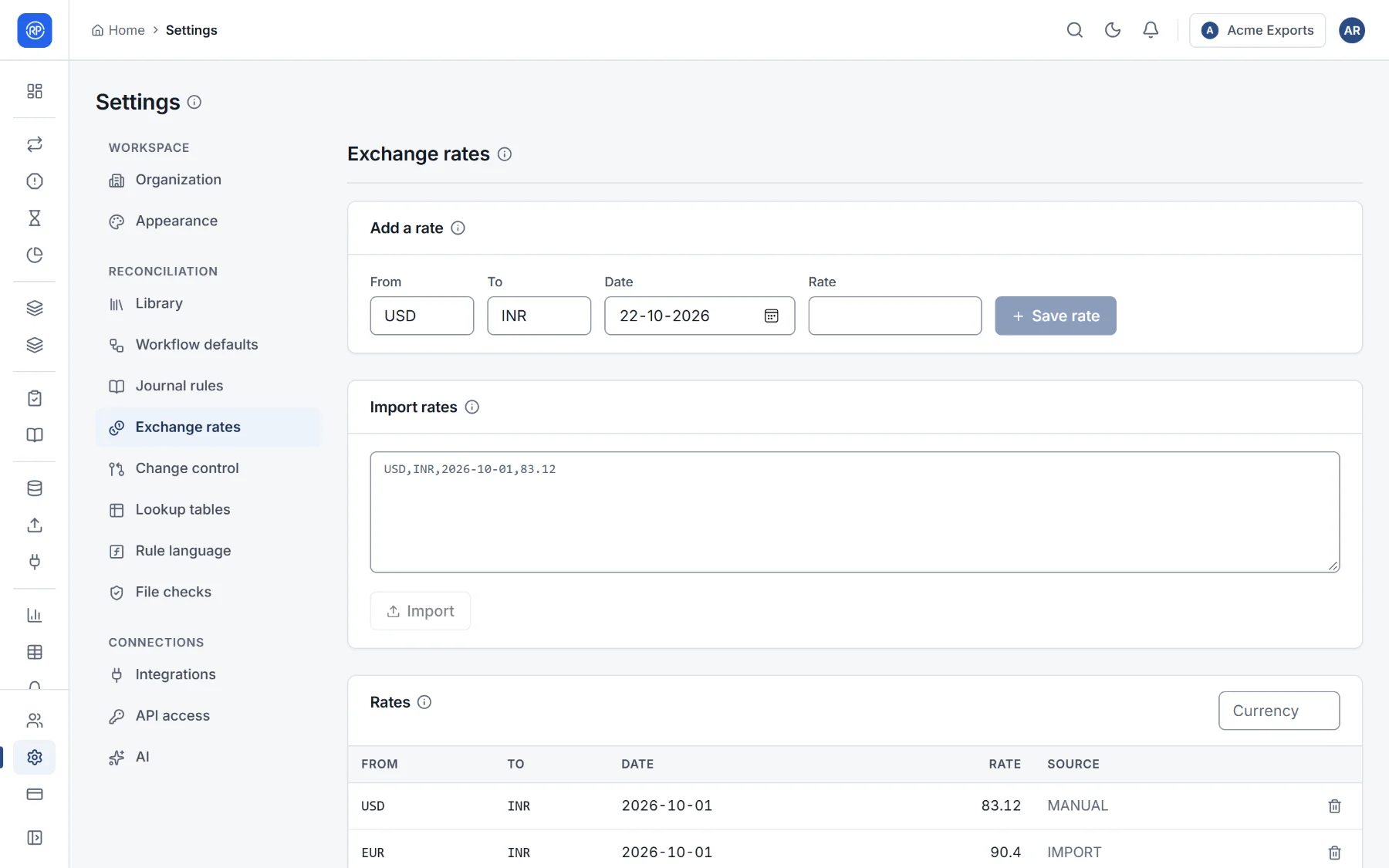
Rates are needed by reconciliations that convert currencies.
A rate is the units of the second currency for one unit of the first, on a date (USD → INR 83.12 on 2026-10-01). A
run uses the latest rate on or before each record’s date, and the inverse works too.
- Add a rate one at a time.
- Import rates: one per line as
from,to,date,rate, for exampleUSD,INR,2026-10-01,83.12. A header line is skipped.
The list shows the latest 5,000 rates; filter it by currency.
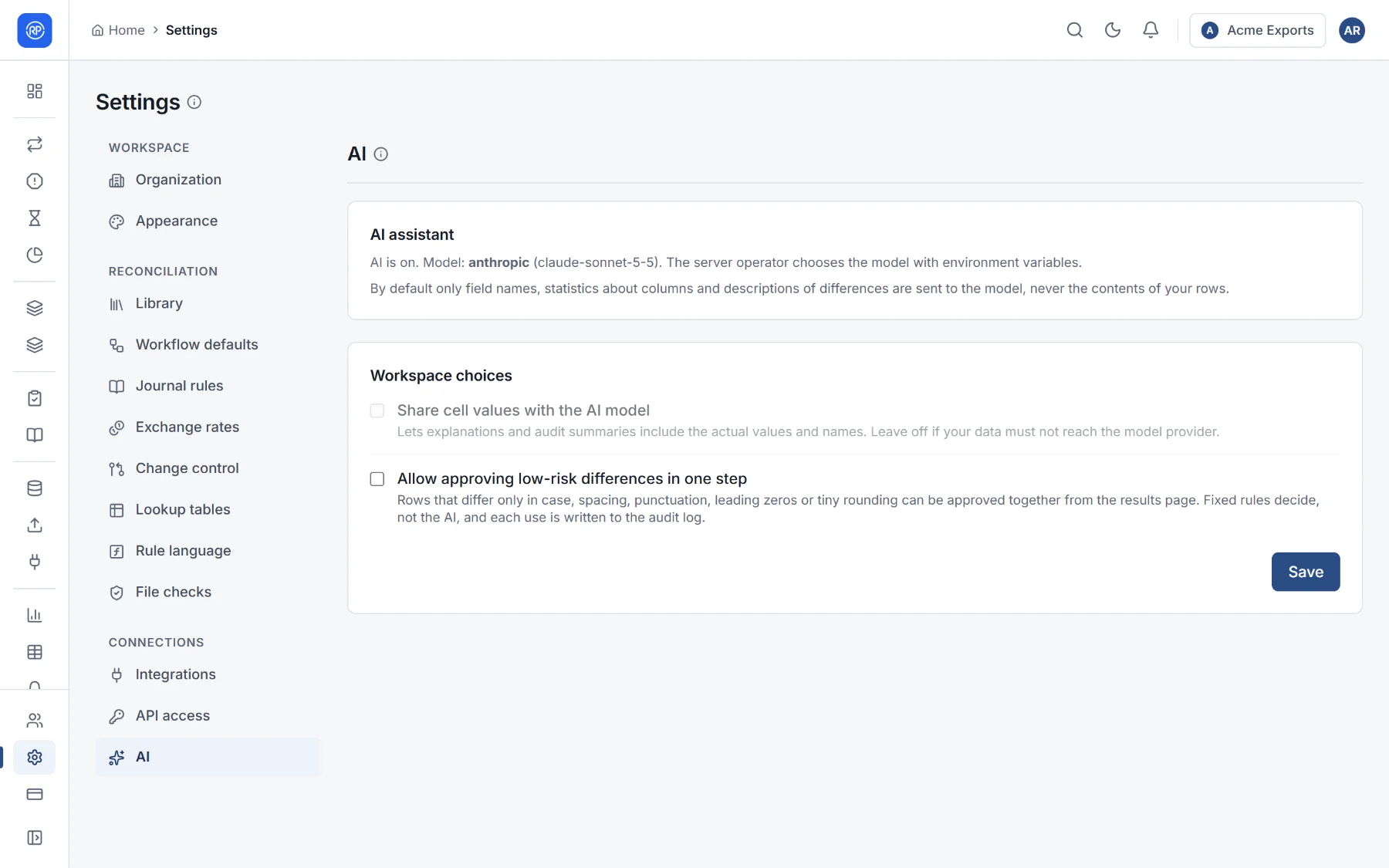
The top of the page says whether AI is on and which model is used. That is decided by whoever runs your RefinePoint server. When AI is off, features that work with fixed rules (mapping suggestions, triage, explanations) still work.
The workspace’s own choices, which only admins change:
| Choice | Effect |
|---|---|
| Share cell values with the AI model | Lets explanations and summaries include actual values and names. Leave it off if your data must not reach the model provider. The server can forbid it altogether. |
| Allow approving low-risk differences in one step | Rows that differ only in case, spacing, punctuation, leading zeros or tiny rounding can be approved together from the results. Fixed rules decide, not the AI, and each use is written to the audit log. |