
Creating a reconciliation
Choose New process on the Reconciliations page. RefinePoint asks where you want to start.
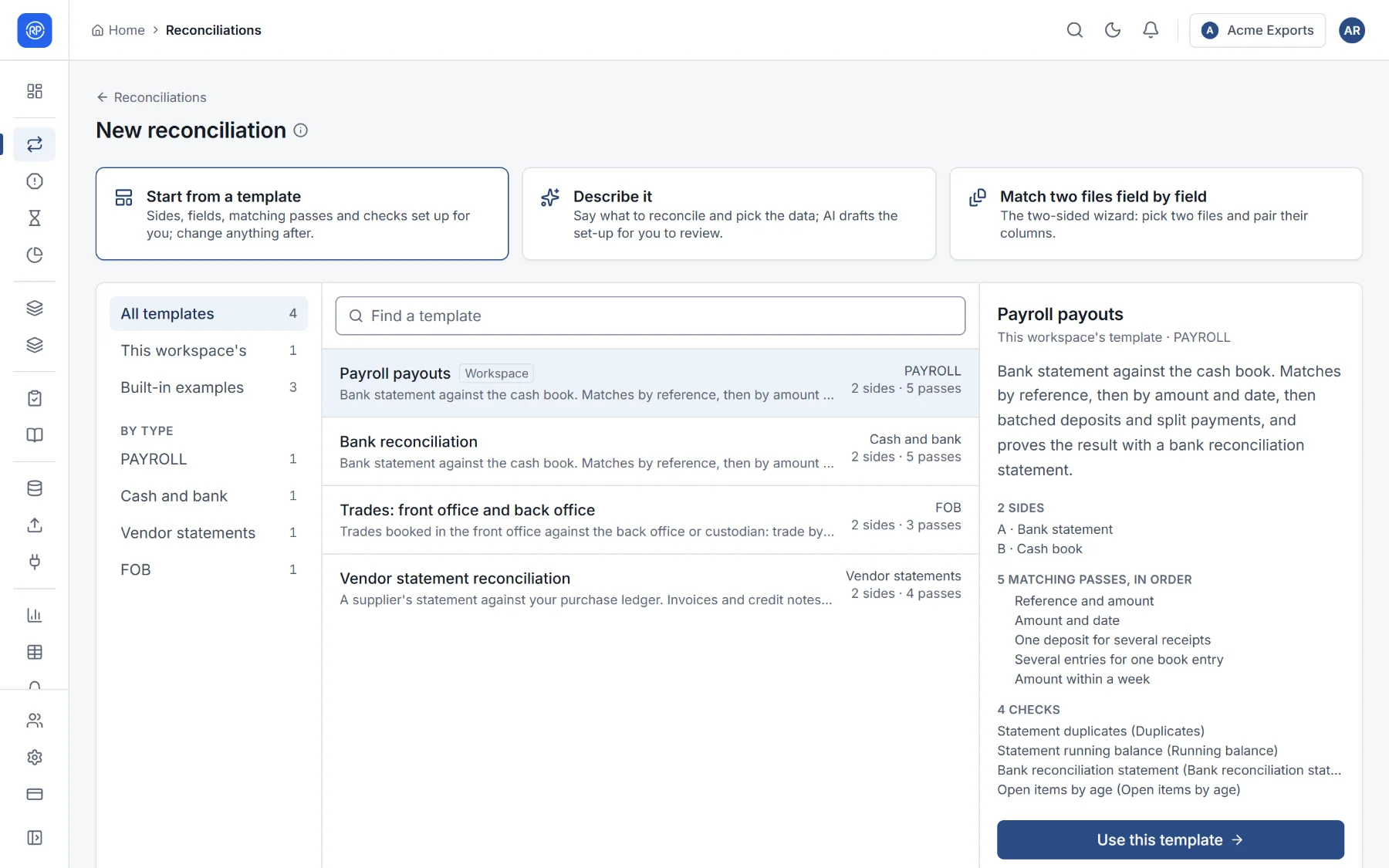
| Start from | Best when |
|---|---|
| A template | Your reconciliation is a common one: bank, vendor statement, GST, card, payroll, trades… Most people start here. |
| Describe it | You would rather say what you want in a sentence and let the AI draft the set-up. |
| Match two files field by field | You have two files and want the simplest possible comparison, column by column. |
Whichever you choose, you end up in the designer (or the wizard), where you can check and change everything before saving. Nothing runs until you save it and choose Reconcile now.
From a template
Section titled “From a template”A template is a complete, ready-made set-up: sides, fields, matching passes, checks and sometimes reason codes. You only connect your own data and check the column mapping.
-
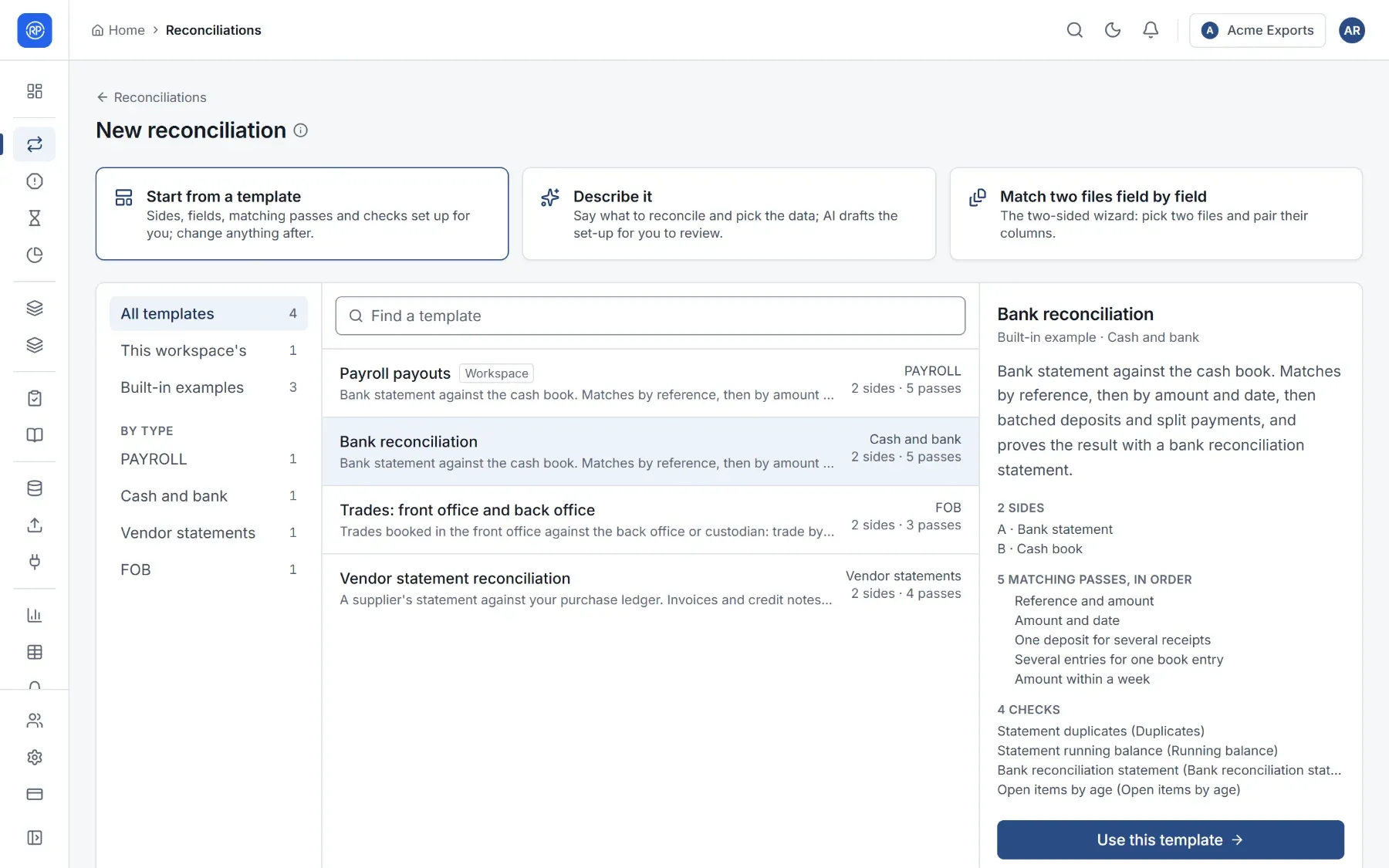
Browse the list on the left, or narrow it with the filters (All templates, This workspace’s, Built-in examples, or a reconciliation type) and Find a template.
-
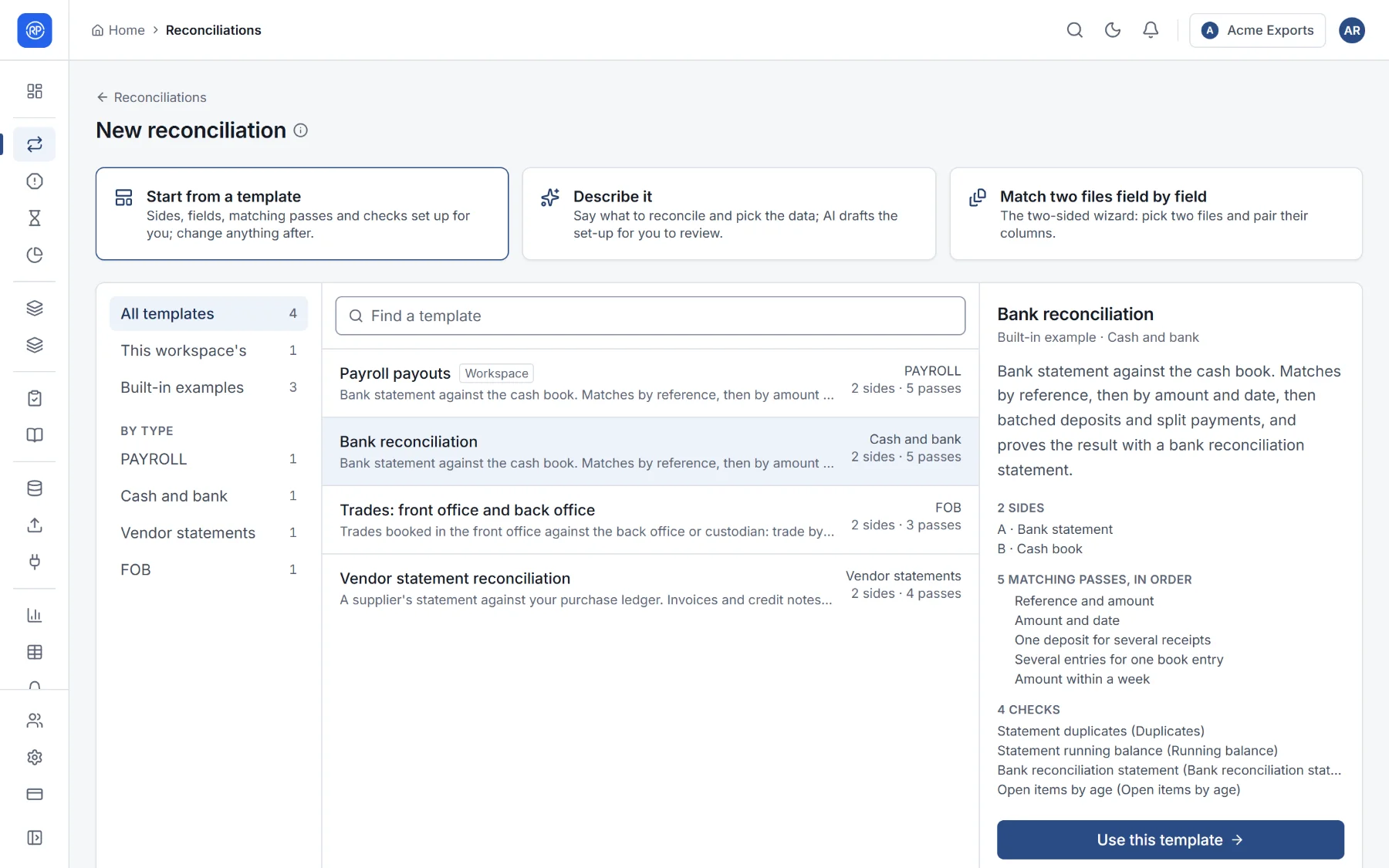
Select a template. The preview shows what it contains: how many sides and which, the matching passes in order, and the checks.
-
Choose Use this template. The designer opens with everything filled in.
-
On Sides, choose your data sources. On Fields, check the column mapping.
-
Create reconciliation.
The templates reference describes each built-in template in full. Your workspace can save its own: in the designer, Save as template keeps the current set-up for others to start from, and Settings → Library manages them.
By describing it
Section titled “By describing it”- Choose Describe it.
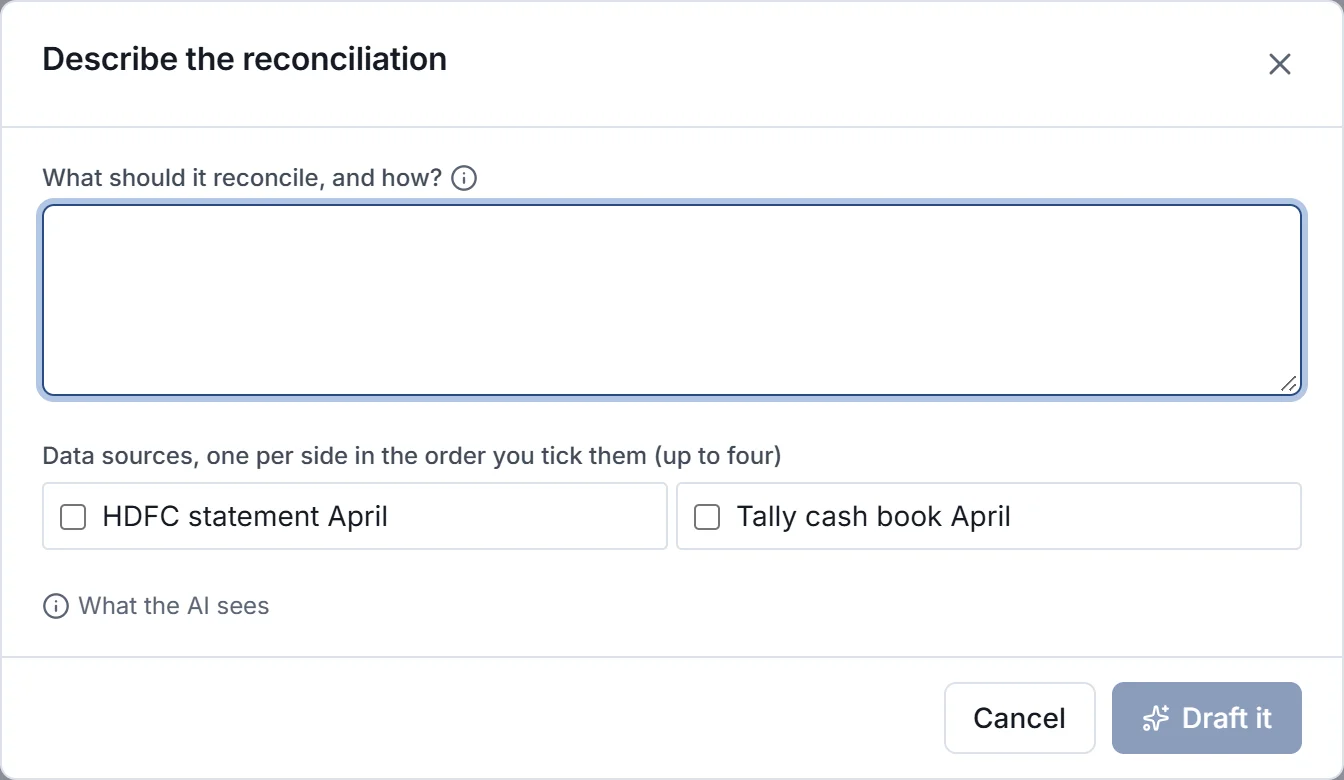
- Write what it should reconcile and how. Be as specific as you like, for example: HDFC statement against the Tally cash book; match on cheque or UTR number, then on amount within 3 days; flag bank charges.
- Tick the data sources to use, one per side, in order (up to four).
- Choose Draft it.
The AI drafts the sides, fields, matching passes and checks, and opens them in the designer for you to review. Column names and a few sample rows of the chosen data sources are sent to the AI model; nothing is saved until you save it in the designer.
With AI, from the Reconciliations page
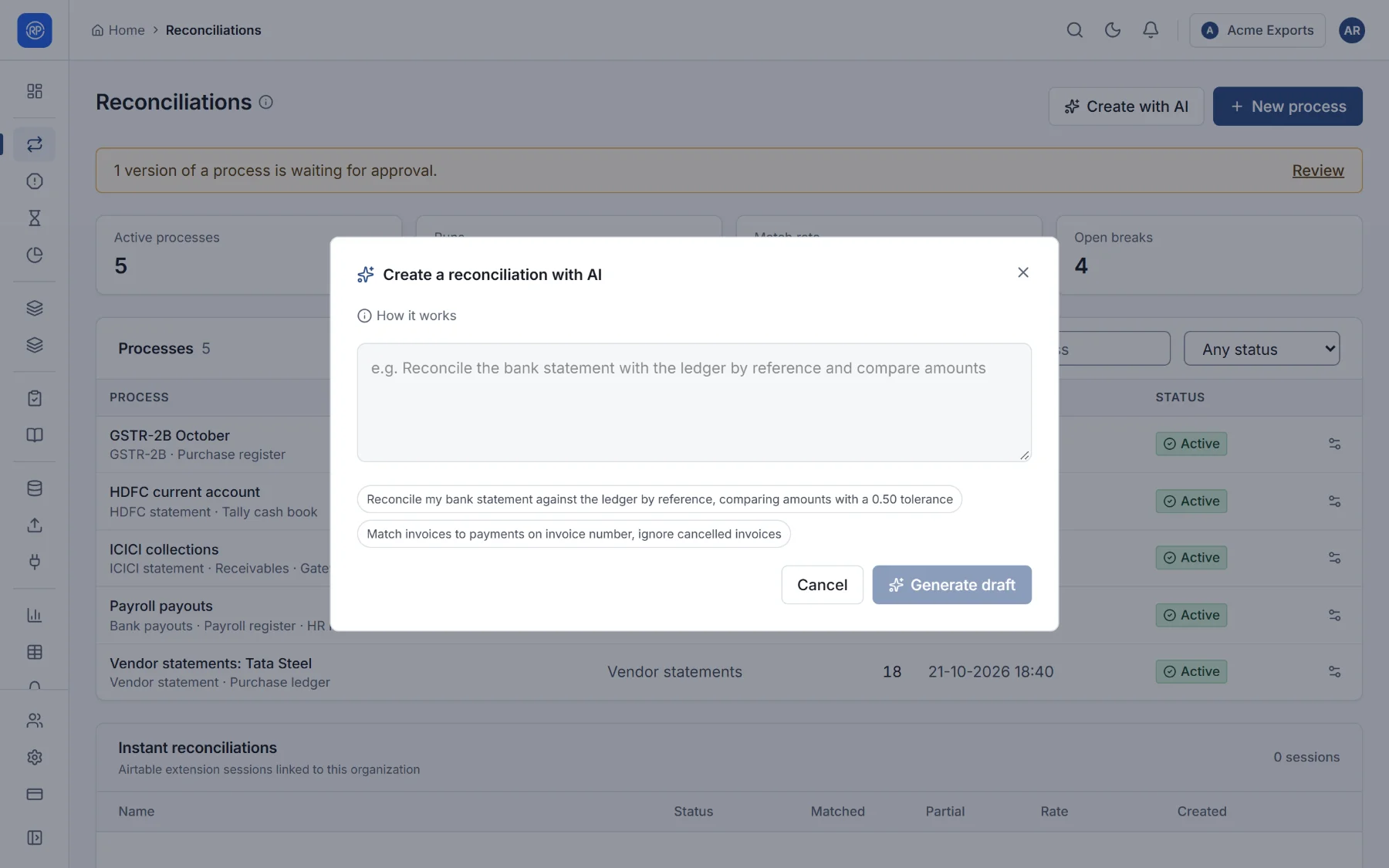
Section titled “With AI, from the Reconciliations page”Create with AI on the Reconciliations page works the same way from a single sentence, such as Reconcile my bank statement against the ledger by reference, comparing amounts with a 0.50 tolerance. The AI uses the data sources in your workspace and proposes the matching rules. Check before creating shows the result for you to review.
The two-file wizard
Section titled “The two-file wizard”Match two files field by field opens a guided wizard for the simplest case: two files, paired column by column. It has eight steps: Details, Data Sources, Schema, Field Mapping, Filters, Schedule, Reported Fields and Review.
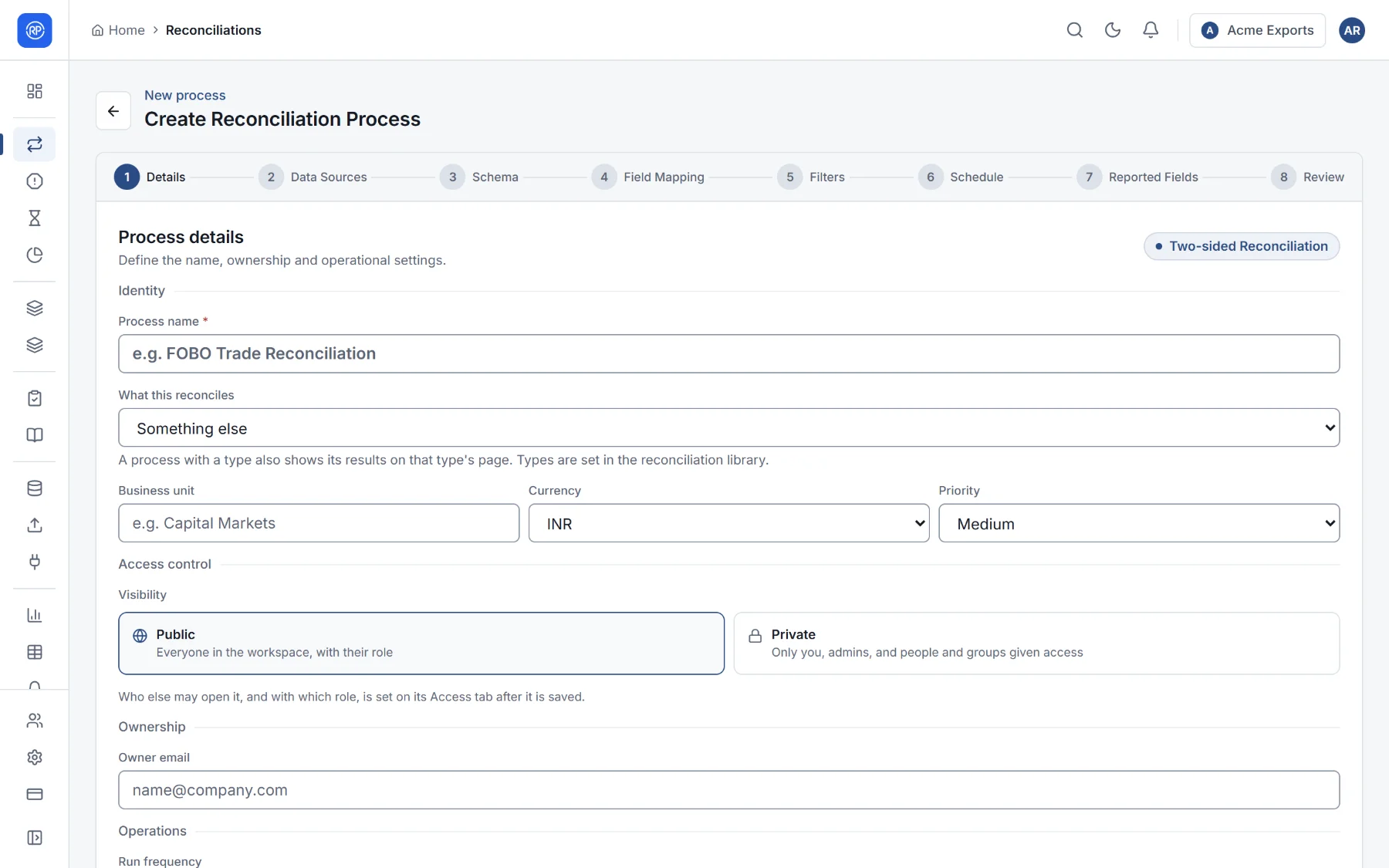
- Details: the name, what it reconciles (its type), business unit, currency, priority, who can see it (Public: everyone in the workspace, with their role; Private: only you, admins, and people and groups given access), the owner’s email and how often it runs.
- Data Sources: the two files or data sources.
- Schema and Field Mapping: the columns of each, and which column of one is compared with which of the other, with the key used to pair rows.
- Filters: rows to leave out.
- Schedule and Reported Fields: when it runs and what the results show.
The wizard suits a quick, straightforward comparison. For several matching passes, more than two sides, checks or reason codes, use a template or the designer.