
The AI rule builder
Next to every condition and value in the rule editor there is Write it with AI. Say what you want in your own words, and the AI writes the rule for you.
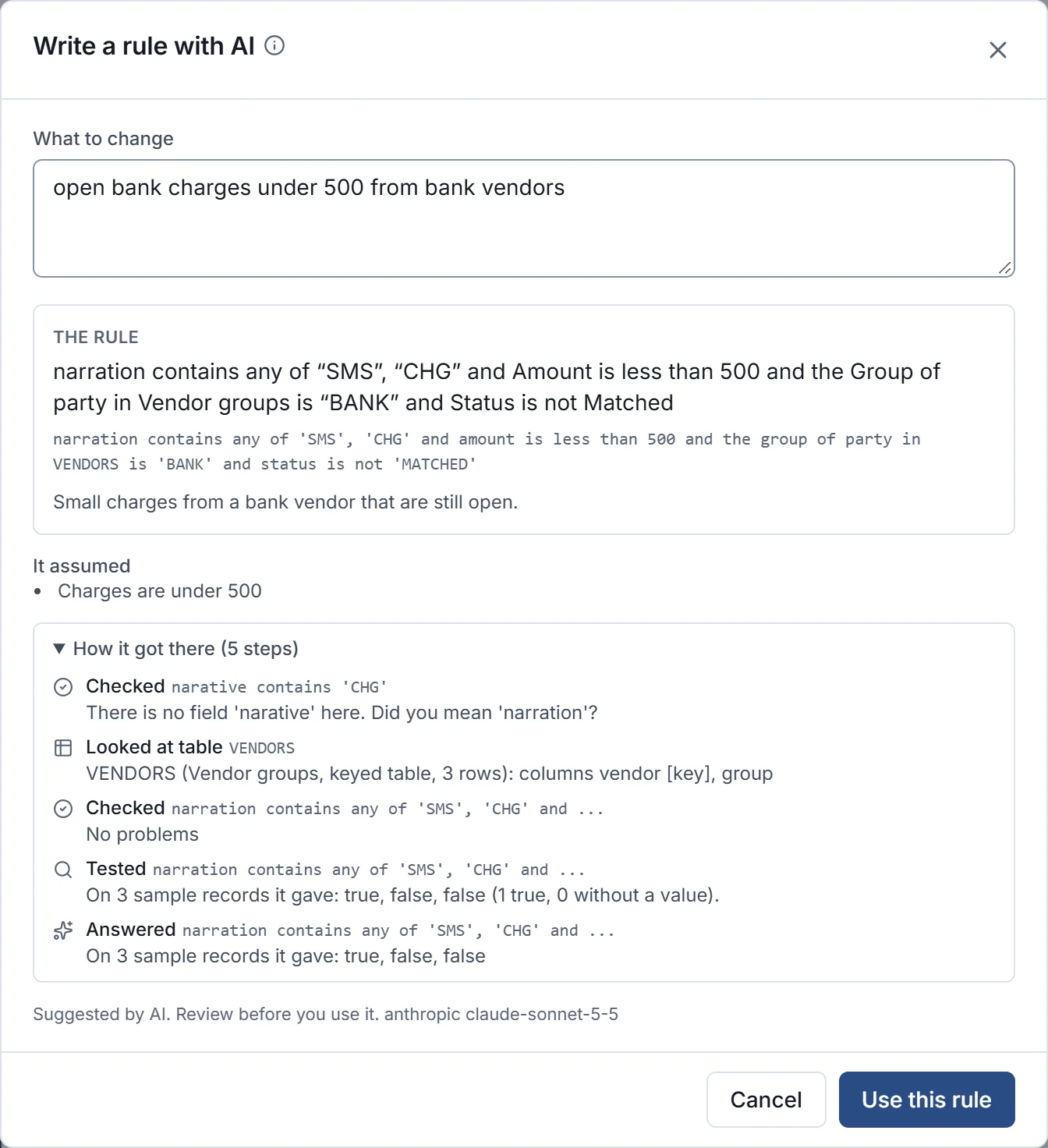
Using it
Section titled “Using it”- Choose Write it with AI where you need a rule.
- Under What to change, describe the rule, for example Bank charges under 500 from bank vendors that are still open, or The amount in rupees, using the rate table for other currencies.
- Choose Write the rule. It takes a few seconds: the AI writes, checks and tests it.
- Read the result:
- The rule, in plain English with your field names, and as the rule itself;
- a short explanation;
- It assumed: anything it had to guess, such as Charges are under 500;
- How it got there: every step it took.
- If it is right, choose Use this rule. It goes into the editor, where you can still change it before saving.
How it works
Section titled “How it works”The AI is given what it needs to write a correct rule, and nothing more:
- the rule language guide and every function;
- the fields available where the rule is used, with their types and choices;
- whether a condition (true or false) or a value is needed;
- your workspace’s lookup tables, their columns and some keys;
- your workspace’s own functions.
It then works in steps, which you see under How it got there:
| Step | What happened |
|---|---|
| Checked | It checked a draft. If the checker found a problem (There is no field ‘narative’ here. Did you mean ‘narration’?) it corrected it. |
| Looked at table | It looked at a lookup table’s columns and keys. |
| Tested | It ran the rule on a few sample records and saw what it gave. |
| Answered | It gave its answer. |
A rule is only offered once it checks without problems, after at most eight steps.
Privacy and switching it off
Section titled “Privacy and switching it off”The request, the field names and types, and lookup table outlines are sent to the AI model. Whether actual cell values (names, amounts) may also be shared with the model is a workspace choice in Settings → AI, made by admins; whoever runs your RefinePoint server can also forbid it altogether. AI itself is switched on or off, and the model chosen, on the server. See Workspace settings.