
Data sources
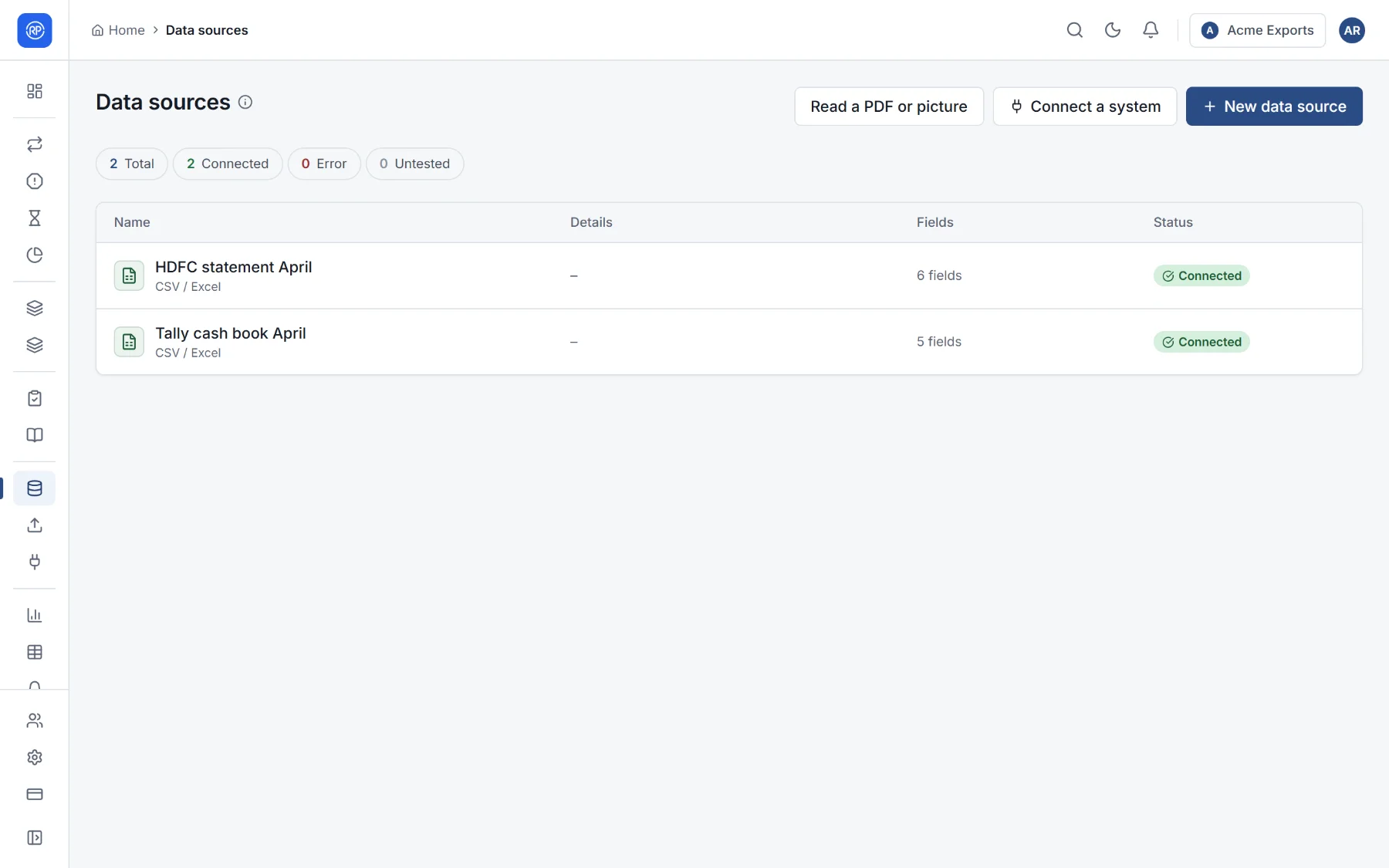
A data source is a table of records that reconciliations read: a bank statement, a ledger export, an ERP report, a database view. Each side of a reconciliation reads one data source. Data sources live in Data → Data sources.
Ways to add data
Section titled “Ways to add data”At the top of the page:
| Button | Use it for |
|---|---|
| New data source | Uploading a file, using a web link, or connecting an Airtable base or a PostgreSQL database. |
| Connect a system | Reading from an accounting system, ERP, database, warehouse, file server or cloud storage. See Connectors. |
| Read a PDF or picture | Statements you only have as a PDF, a scan or a photo. |
Uploading a file
Section titled “Uploading a file”- Choose New data source and give it a name, such as HDFC statement April.
- Drop the file on the upload area, or click it to browse. Supported: CSV, Excel, and bank statements in MT940, CAMT.053 and OFX, which are read directly into transactions.
- For an Excel file, choose the sheet (by name or position). For any file, say whether the first row holds the column names and on which row the data starts (useful when a report has a title block above the table).
- Check the columns that were found. Each has a name and a type: text, number or date. Change any that are wrong. What do the columns mean? asks the AI to explain each column from a sample, if AI is on in your workspace.
- Save.
Number parsing settings apply to the numeric columns: the locale decides which character separates thousands
and decimals (1,234.50 or 1.234,50), and decimal places how many digits are kept.
Using a web link
Section titled “Using a web link”Instead of a file, paste a link: a Google Sheet, a pre-signed Amazon S3 or Azure link, or a Dropbox link (https://…).
RefinePoint downloads it now, and again whenever you choose Refresh, so the data source follows the file.
Reading a PDF or a picture
Section titled “Reading a PDF or a picture”For statements you only have as a PDF, a scan or a photo (PNG, JPEG or WebP, up to 10 MB):
- Choose Read a PDF or picture and pick the file.
- Choose Read the statement. The AI copies the transactions into a table.
- Check before saving: RefinePoint verifies that every balance follows from the one before and that the rows add up to the closing balance. Fix anything flagged.
- Choose Save as a data source.
Connecting a system
Section titled “Connecting a system”Connect a system opens the connector catalog: accounting systems, ERPs, databases, warehouses, SFTP and FTP servers, and cloud storage. Pick one, choose a saved connection or enter its settings, choose what to read, then review the fields and save. Data from a connected system is read again before every reconciliation run, so matches use the latest figures. See Connectors for each one.
Viewing what was read
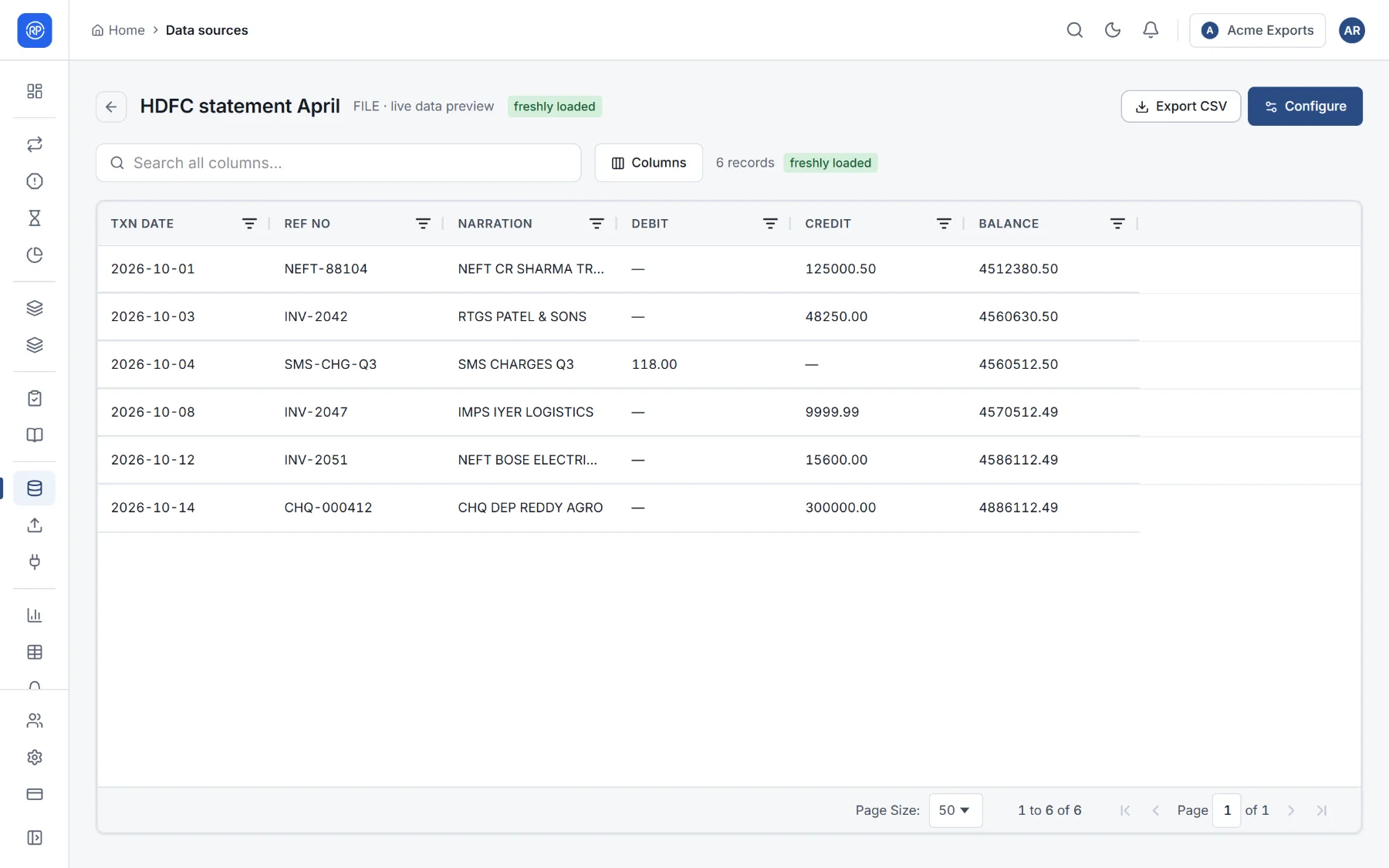
Section titled “Viewing what was read”Open a data source to see its records: search them, choose which Columns to show, and page through the rows.
Changing a data source
Section titled “Changing a data source”Edit a data source to rename it, change its column names and types, change how the file is read (sheet, header row, first data row, number parsing), or point it at a new file. For a web link or a connected system, Refresh reads it again now.
Data that arrives on its own
Section titled “Data that arrives on its own”Files that arrive every day or month (by SFTP, the API, or a watched folder) do not need a new data source each time. File routing takes each file to the right data source and, if you like, runs the reconciliation.
Who can do what
Section titled “Who can do what”Seeing data sources, seeing their rows, creating, changing and deleting them are separate permissions (area Data in the permissions reference).