
The designer
The designer is where a reconciliation is set up and changed. It opens when you create a reconciliation, and when you choose Edit on a reconciliation’s page or Configure in the list.
The ten steps
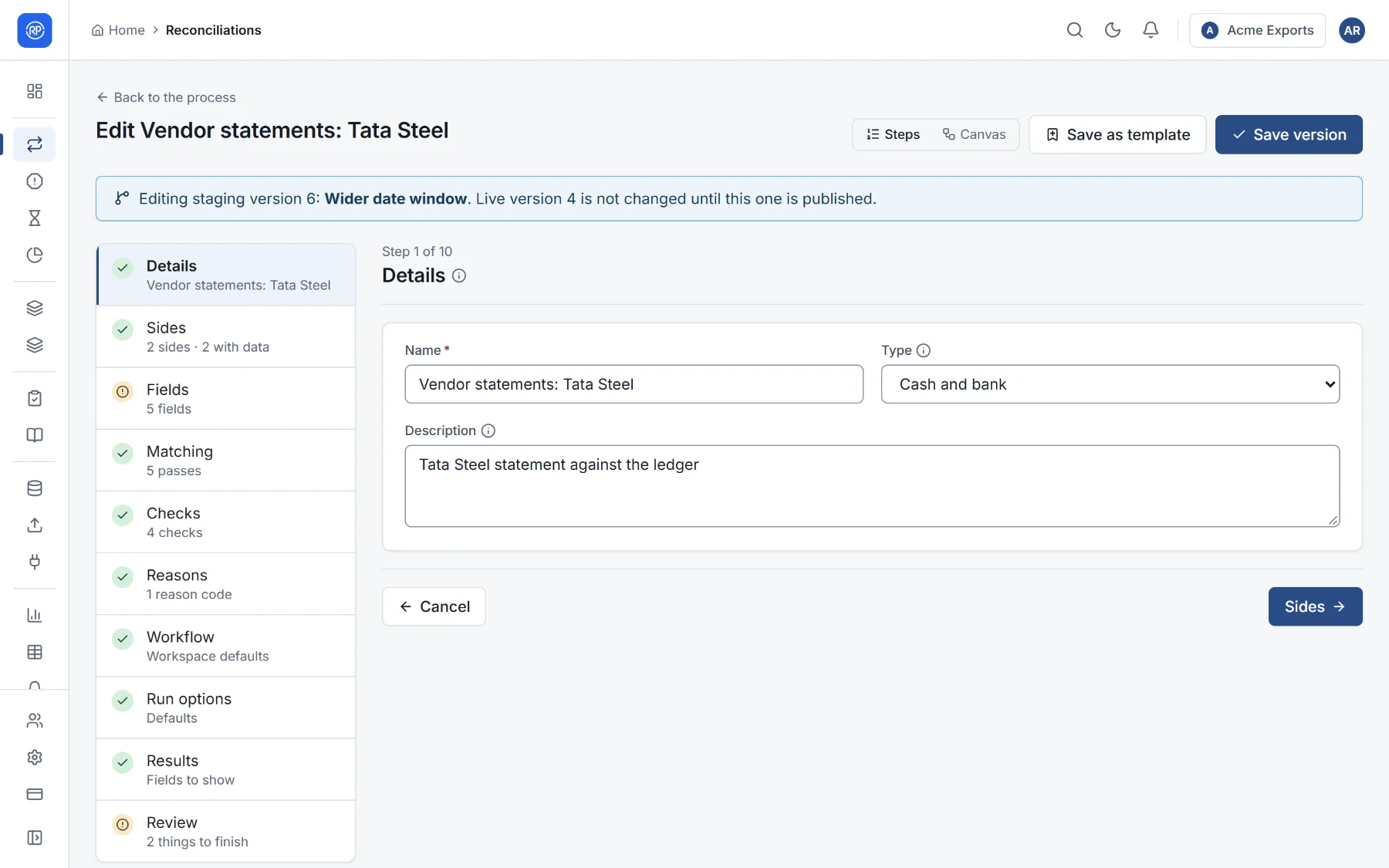
Section titled “The ten steps”The steps are listed on the left. You can go to any step at any time; a tick means it is complete, and a warning sign means something is still needed. The button at the bottom right of each step, named after the next step, moves on.
| Step | What you decide | Read more |
|---|---|---|
| 1. Details | Its name, its type (which also puts its results on that type’s page) and a description of what it reconciles and why. | — |
| 2. Sides | The datasets it compares: one to four, each read from a data source, filtered, prepared and rolled up. | Sides and data preparation |
| 3. Fields | The common fields every side is mapped onto: reference, date, amount, party… | Fields |
| 4. Matching | The passes that pair records across sides, in order, with their tolerances. | Matching |
| 5. Checks | Proofs that the result is right: balances agree, totals tie, nothing is duplicated. | Checks |
| 6. Reasons | Reason codes that explain breaks, and which of them clear breaks automatically. | Reason codes |
| 7. Workflow | How breaks are worked: approval, deadlines and assignment. | Workflow and run options |
| 8. Run options | Carrying open items forward, matching within groups, converting currencies. | Workflow and run options |
| 9. Results | Which fields the results show, and extra calculated columns. | Workflow and run options |
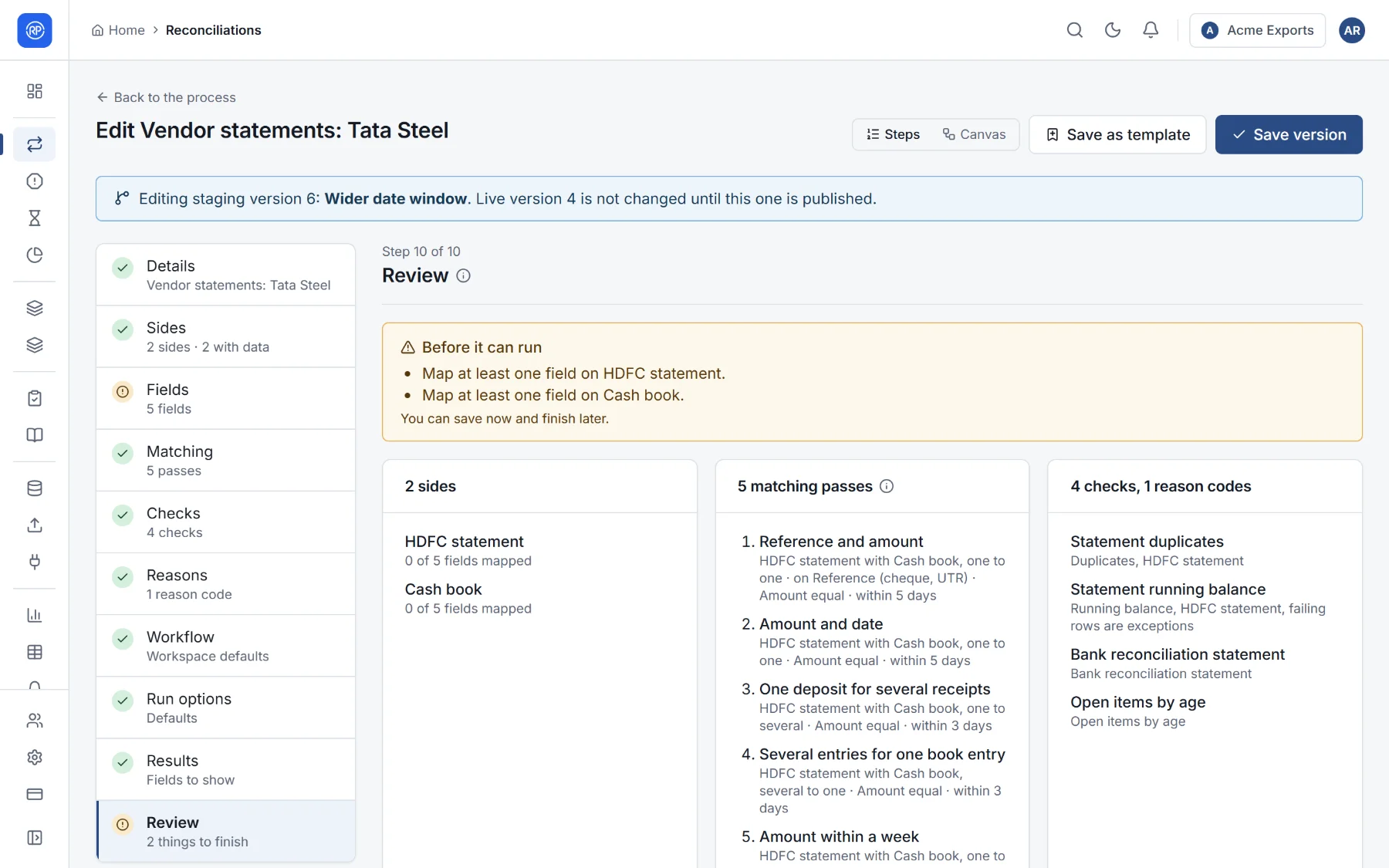
| 10. Review | Everything at a glance, and what is still needed before it can run. | Below |
Review: is it ready?
Section titled “Review: is it ready?”The last step summarises the whole set-up — the sides and their data, the passes in order, the checks and reason codes — and lists anything that stops it from running, such as Map at least one field on HDFC statement. Select an item in the list to jump to the step that needs it. The same list appears under the steps on the left (2 things to finish before it can run).
The canvas view
Section titled “The canvas view”Steps and Canvas at the top switch between two views of the same set-up. The canvas draws it as a diagram: each side’s data source, its preparation, the matching passes that join the sides, the checks and the results.
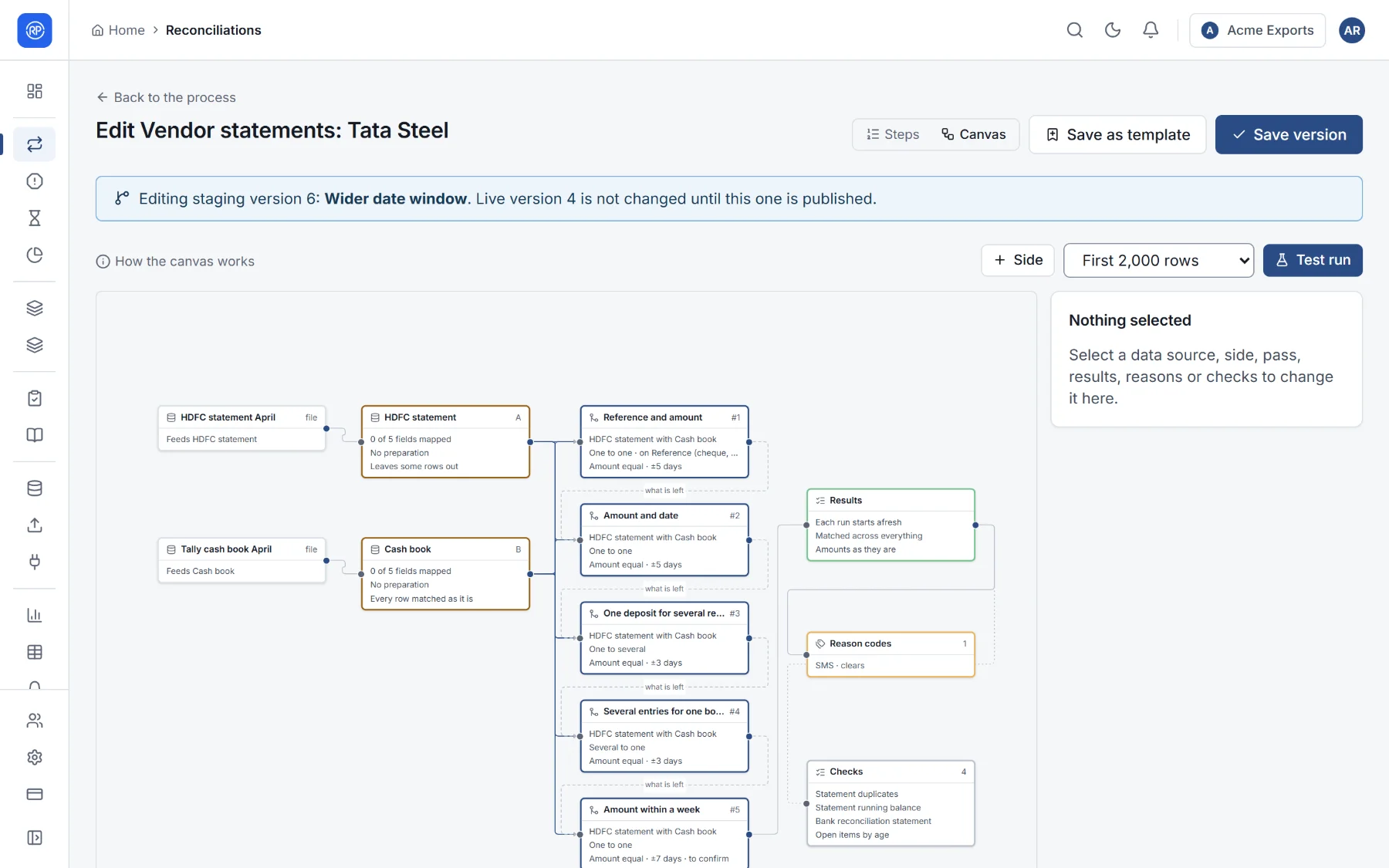
- Drag from one side’s dot to another side to add a matching pass between them.
- Select anything to change it in the panel on the right; changes are the same as in the steps.
- Test run runs the set-up on the first rows of each data source (500, 2,000 or 10,000), without saving, so you can see what it would match and how long it takes.
Saving
Section titled “Saving”The main button at the top right changes with the situation:
| You see | When | What happens |
|---|---|---|
| Create reconciliation | A new reconciliation. | It is saved and appears in the list. |
| Save changes | A reconciliation that has never run and is not active yet. | The change takes effect at once. |
| Save as staging | A live reconciliation (active, or run at least once). | Your changes are kept as a new staging version; the live set-up is not touched. |
| Save version | You are editing a staging version. | The staging version is updated. |
When you save a version, a dialog asks for:
- Name of the version (optional), such as Wider date window;
- What changed and why, for whoever approves it and anyone reading the history later. It is required when your workspace needs approval.
Then choose:
- Save to keep working on it later; or
- Save and publish: runs use it from then on, and the live version becomes history; or, when changes need approval, Save and submit for approval: it goes live once someone approves it, and runs keep using the live version until then.
A banner at the top tells you which version you are editing, for example Editing staging version 6: Wider date window. Live version 4 is not changed until this one is published.