
Running a reconciliation
Open a reconciliation from the list to see its page. The header shows its name, its status and the sides it compares, with Edit (open the designer) and Reconcile now.
Three ways to run
Section titled “Three ways to run”| How | When to use it |
|---|---|
| Reconcile now | Any time, by hand. The run reads the latest data of every side. |
| When files arrive | Set up a route with Run when every side has a new file or Run for every file. Best for daily statements. |
| On a schedule | At set times, such as 6:00 every weekday. See Scheduled jobs. |
Every run uses the reconciliation’s live version, and records which version it used, so you can always tell which set-up produced a result. Data sources connected to other systems are read again at the start of each run.
The tabs
Section titled “The tabs”Summary
Section titled “Summary”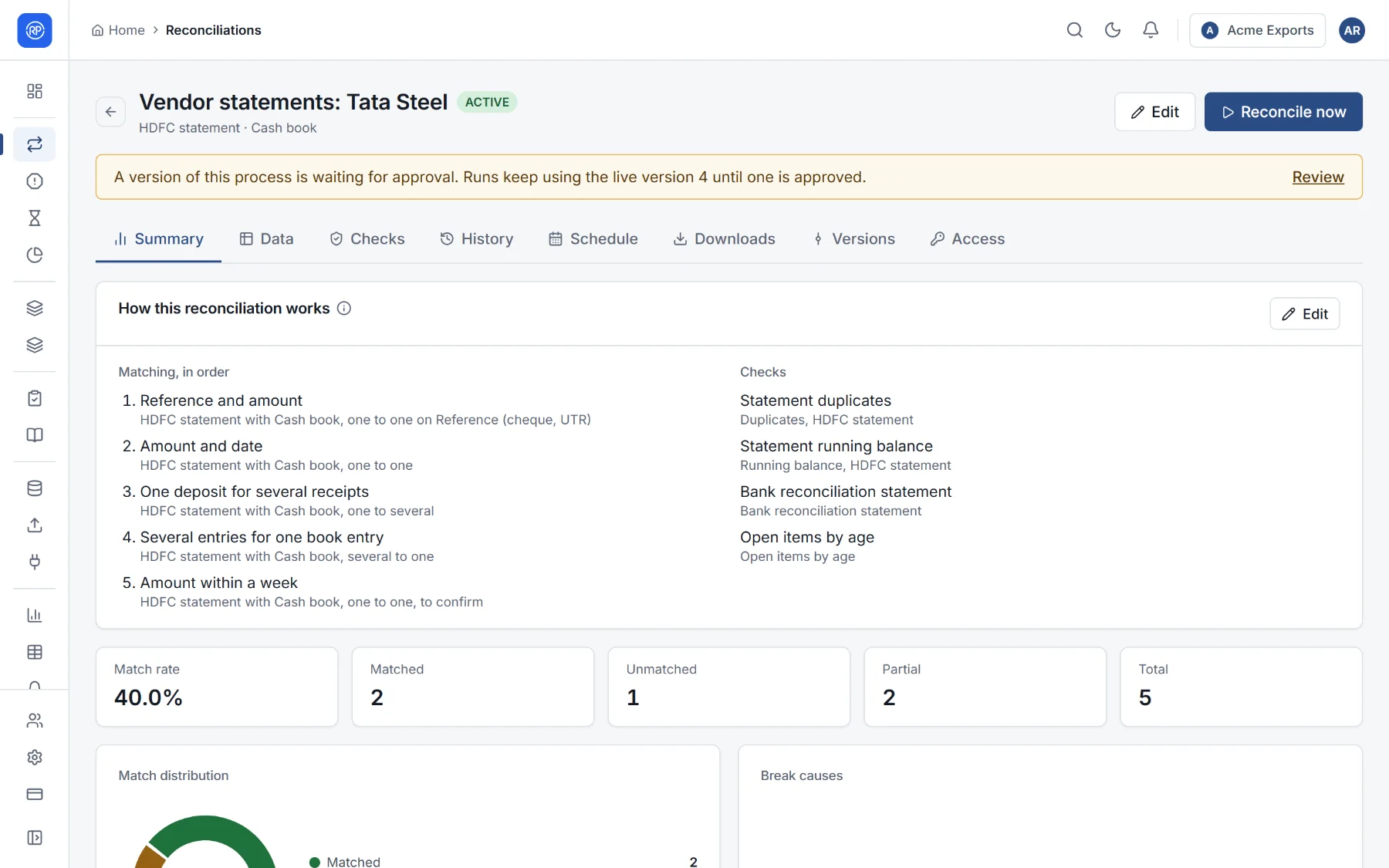
How the reconciliation works, in words (its passes, checks and reason codes), and the latest run at a glance: match rate, matched, unmatched and partly matched records, and the total difference.
The records of a run, side by side. Choose the run at the top, filter by status (All, Matched, Partial, Unmatched, Duplicate, Filtered) and search.
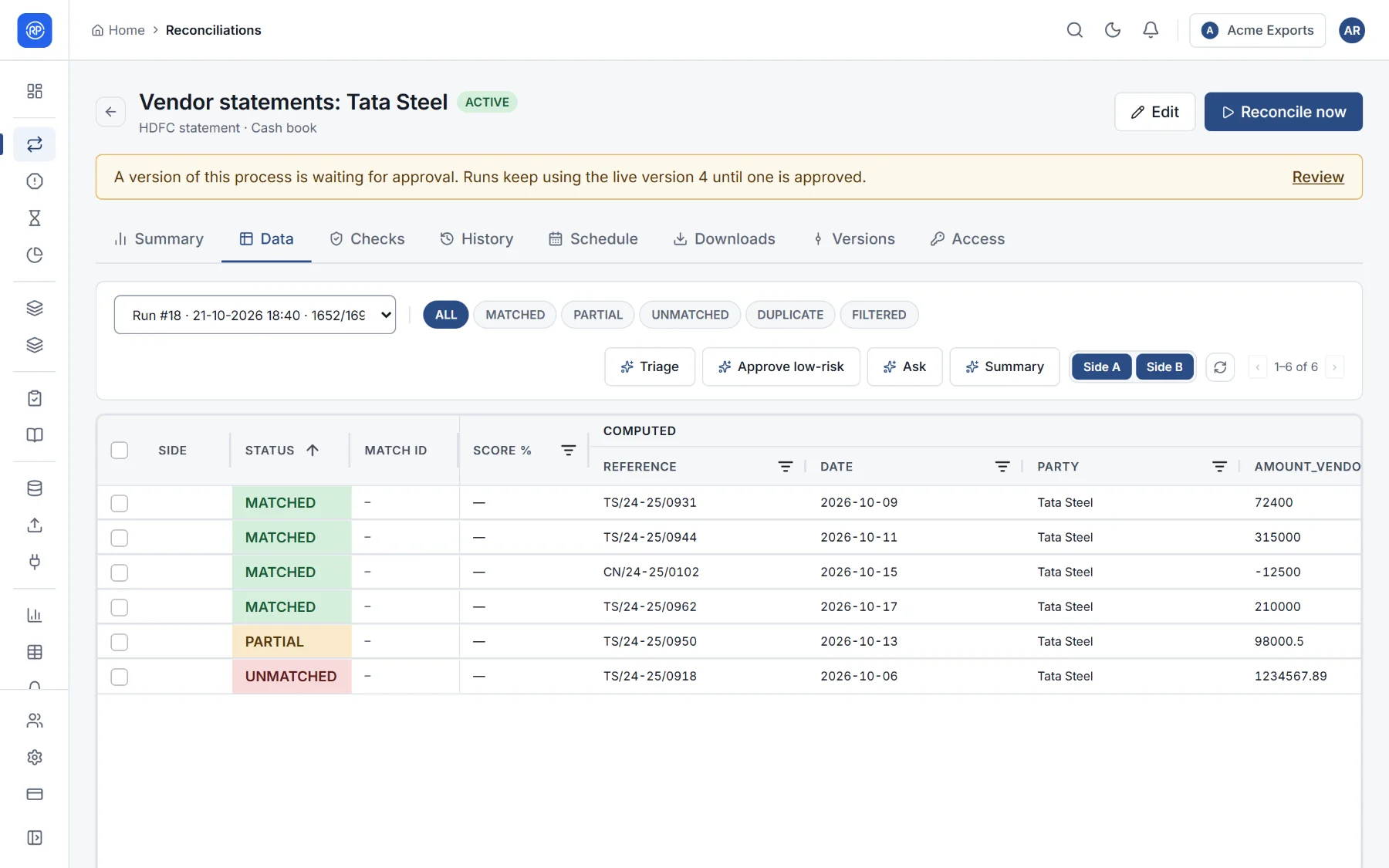
- Select a record to see its match details: every field on each side, marked Same or Differs.
- Select several records to Comment on them or Apply labels.
When AI is on, a row of helpers sits above the table:
| Helper | What it does |
|---|---|
| Summary | A short written summary of the run. |
| Triage | Groups the exceptions by cause and ranks them, so you know where to start. The groups and ranking are computed from the results. |
| Approve low-risk | Approves differences that are only case, spacing or rounding. These rules are fixed, not decided by an AI model, and each use is written to the audit log. |
| Ask | A question about the results in plain words, such as Unmatched items over 10,000. |
Checks
Section titled “Checks”The result of every check for the chosen run: passed, warning, failed or for information, with the figures and the rows flagged.
History
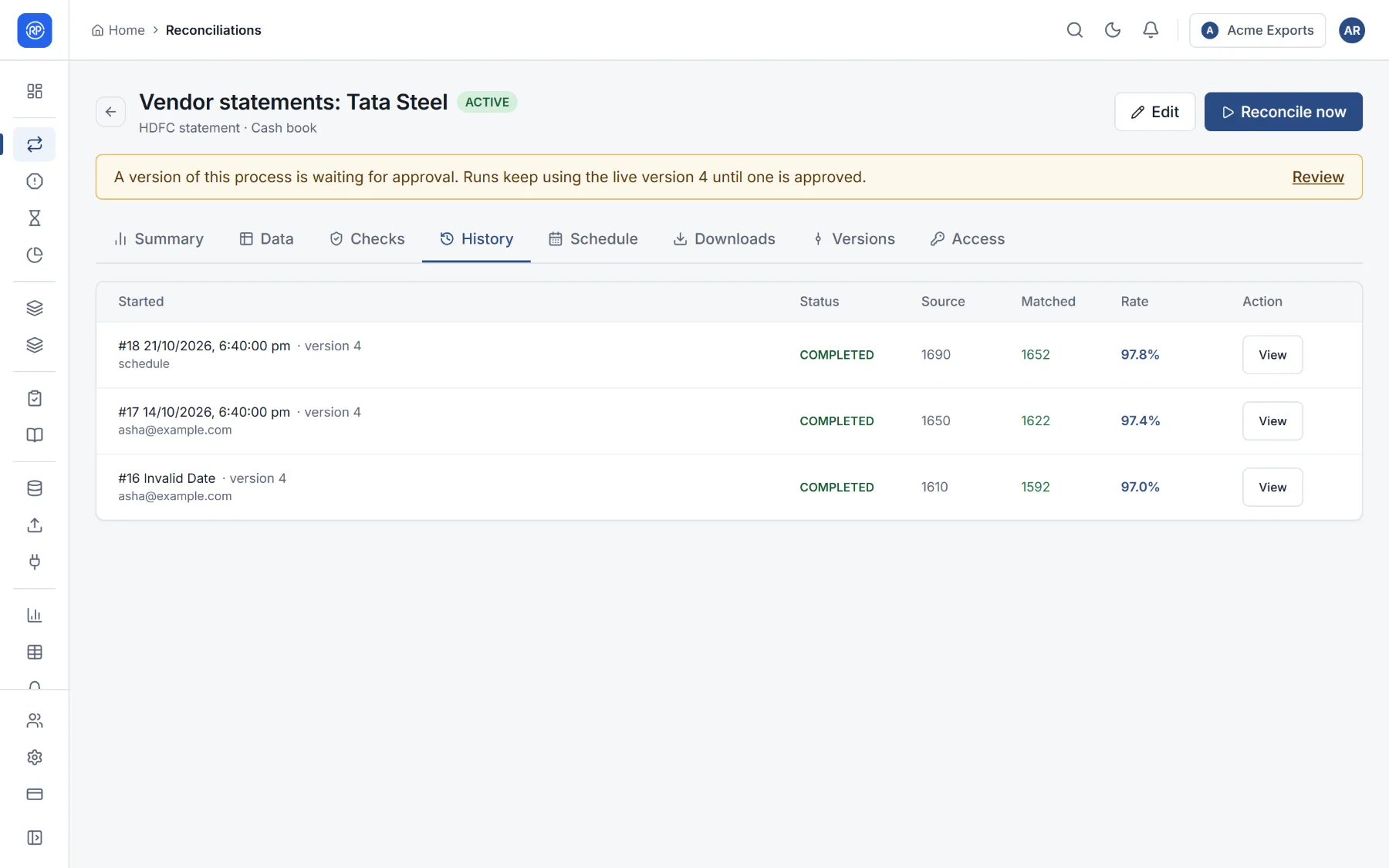
Section titled “History”Every run: when it started and finished, who or what started it (a person, the schedule, a file), which version it used, how many records each side had, how many matched, the match rate. Open a run to see its data.
Schedule
Section titled “Schedule”When the reconciliation runs automatically, if it has a schedule. See Scheduled jobs.
Downloads
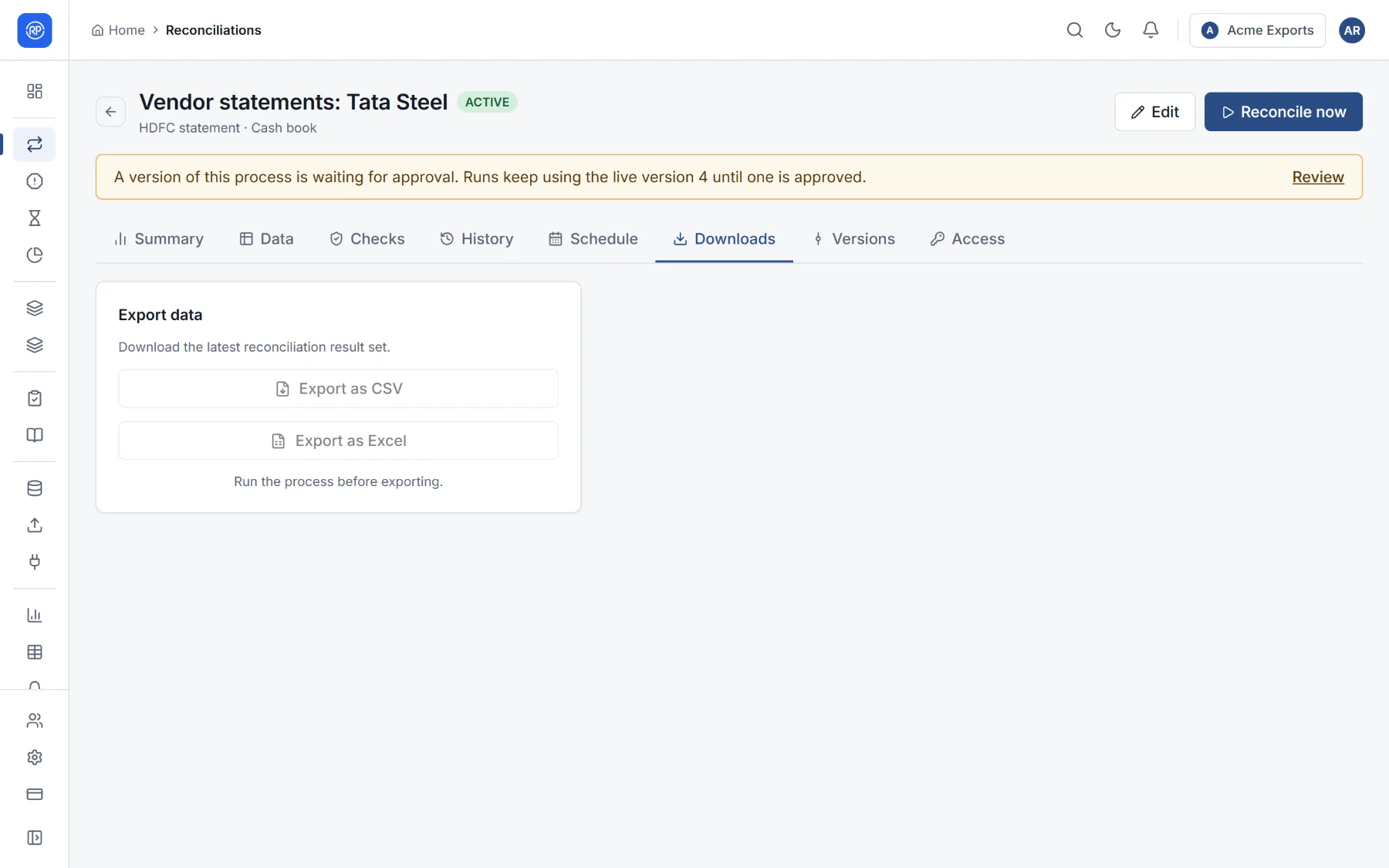
Section titled “Downloads”The latest results as CSV or Excel, with every field, for your own analysis or your auditors.
Versions and Access
Section titled “Versions and Access”Versions lists the live version, versions being prepared, waiting for approval, and history. See Versions and approval. Access says who can open it and with what role. See Access to a reconciliation.