
File routing
Most reconciliations get a new file every day or month: today’s bank statement, this month’s vendor statement. File routing receives those files, sends each one to the right side of the right reconciliation, and can run the reconciliation as soon as its files are in. It is in Data → File routing.
How files arrive
Section titled “How files arrive”| Channel | How it works |
|---|---|
| Upload | Send a file on the Received files tab, from your computer. |
| API | A system posts the file with an API key. |
| SFTP inbox | Your workspace’s own SFTP account. Banks and systems drop files there; each is routed once it has finished uploading, then removed from the inbox. |
| Watched folder | An SFTP or FTP folder on your own server, checked every few minutes through a saved connection. New files are routed, then moved to an archive folder if you set one. |
The map
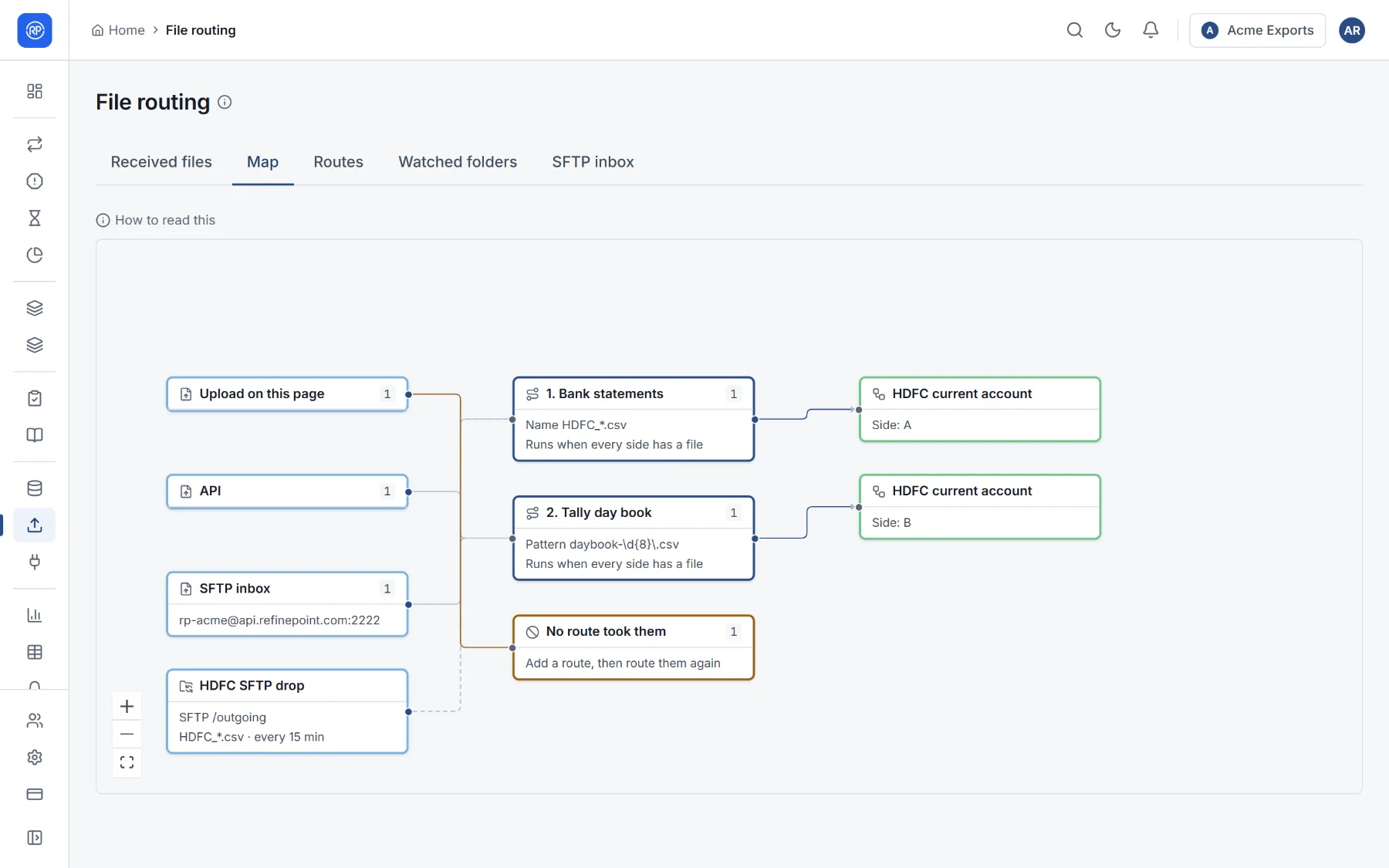
Section titled “The map”The Map tab draws it all: the channels on the left, the routes in the middle (tried in order), and the reconciliation sides they feed on the right. Numbers are files received recently. Select a route to change it.
Routes
Section titled “Routes”A route says: files named like this, arriving by these channels, go to this side of this reconciliation, and then…
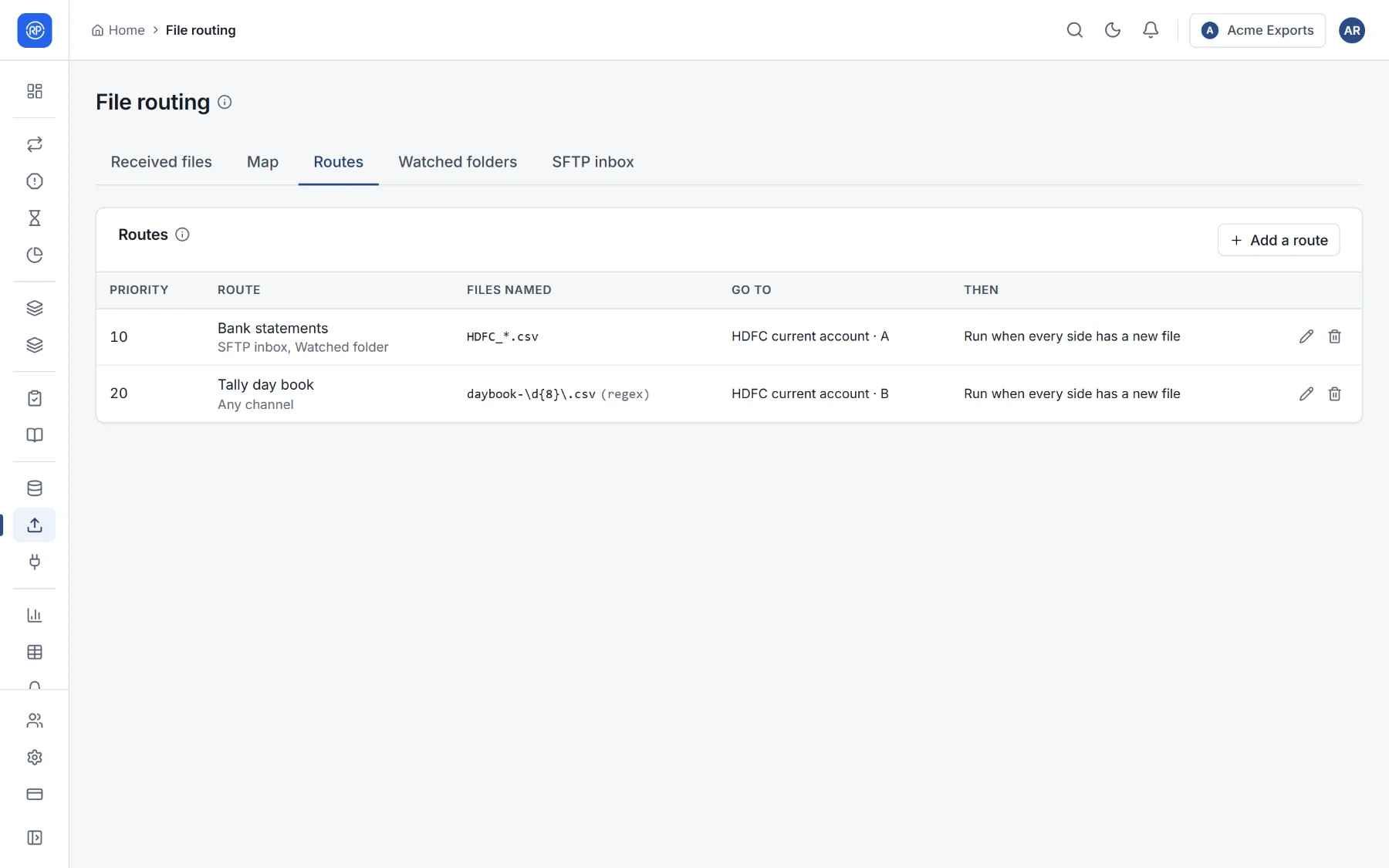
| Setting | Meaning |
|---|---|
| Name | Shown on the map and in the received files. |
| Priority | Routes are tried in order, lower numbers first. The first active route that fits decides where a file goes. |
| Files named | A pattern for the file name. Simple patterns use * (anything) and ? (one character), as in HDFC_*.csv. Regular expression is there for anything more involved. |
| Files that arrive by | Upload, API, SFTP inbox, watched folder, or any combination. |
| Process and side | Where the file goes: a side of a reconciliation. |
| Then | Run when every side has a new file (for a bank statement and a cash book that both arrive daily), Run for every file, or Only store the file and run by hand later. |
Received files
Section titled “Received files”Every file that arrived, how, when, where it went and its status:
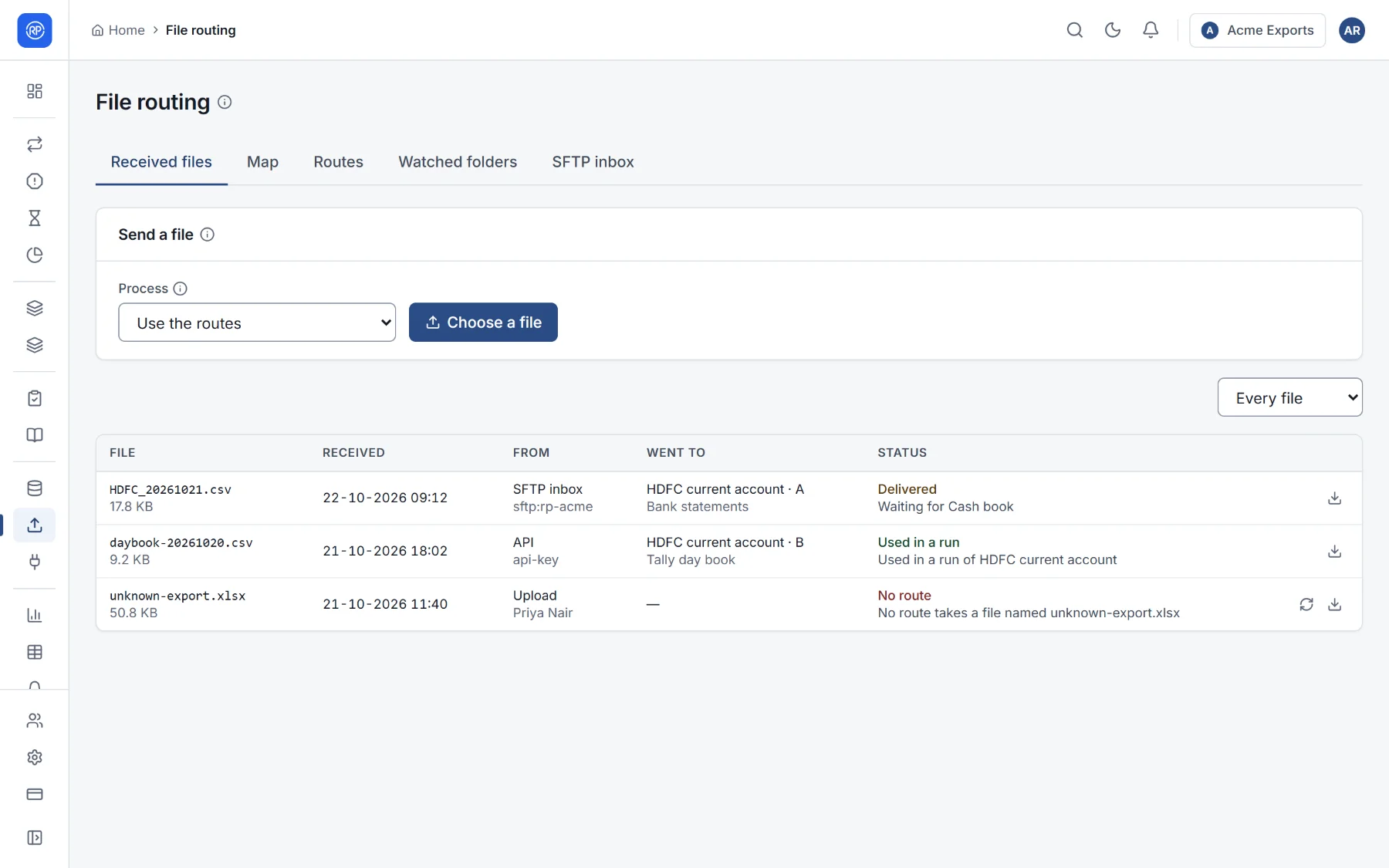
| Status | Meaning |
|---|---|
| Delivered | It reached a reconciliation side and is waiting to be used. |
| Used in a run | A run used it. |
| No route | No route fitted its name and channel. Add or fix a route, then Route again. |
| Failed | It could not be read or delivered; the message says why. Fix it, then Route again. |
Download a file to see exactly what arrived. Files are kept for 90 days.
Send a file lets you upload one yourself: let the routes decide, or choose the process and side; a file you place yourself is only stored, and you run the reconciliation when ready.
The SFTP inbox
Section titled “The SFTP inbox”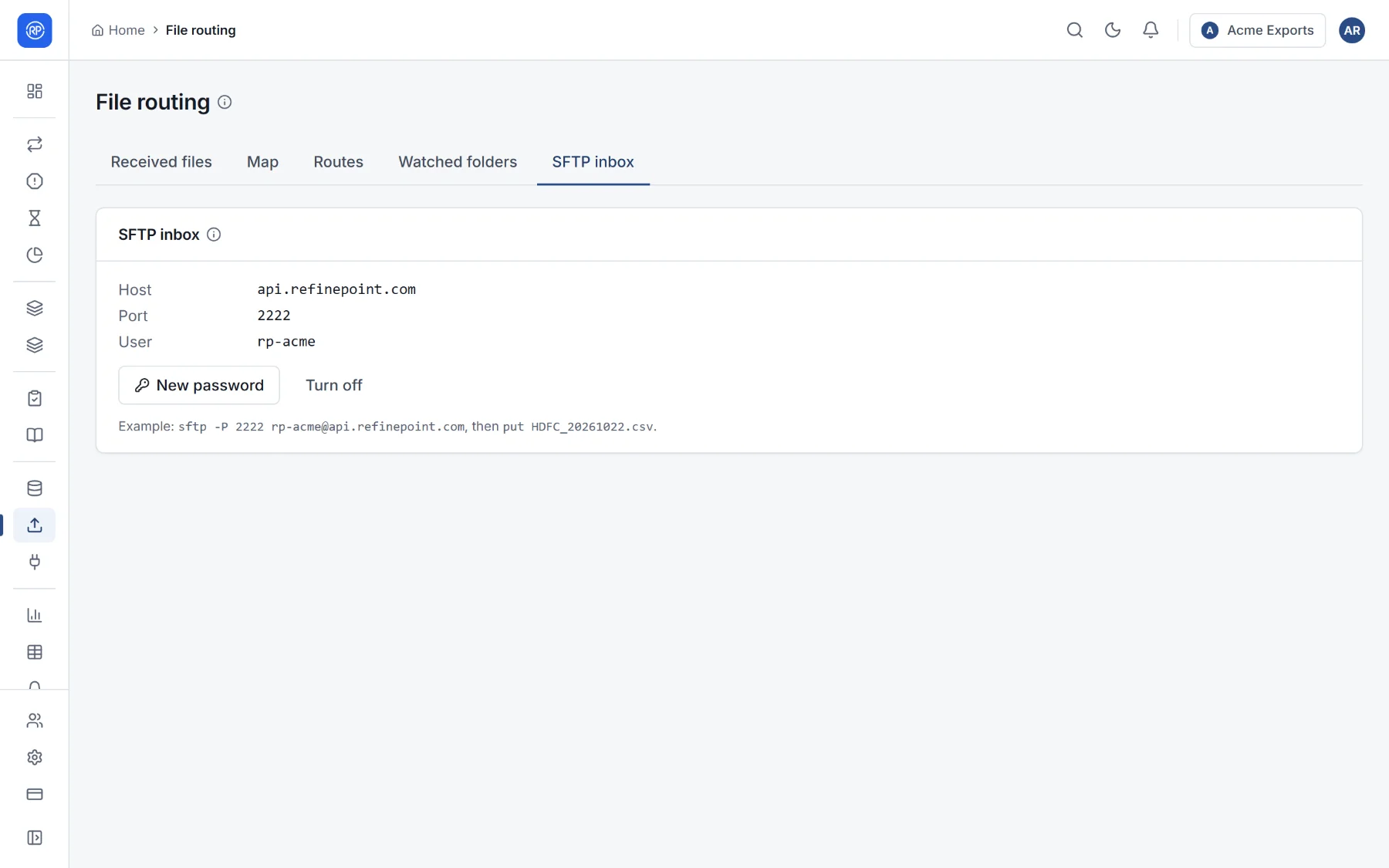
The inbox has its own host, port and user, shown on the tab with an example command. New password creates a password (shown once; copy it into the system that sends files) and replaces the old one. Turn off closes the inbox.
- Choose New password and copy it.
- Give your bank or system the host, port, user and password.
- Add a route for the file names it will send.
- Send a test file and check Received files.
Only workspace admins set up the inbox.
Watched folders
Section titled “Watched folders”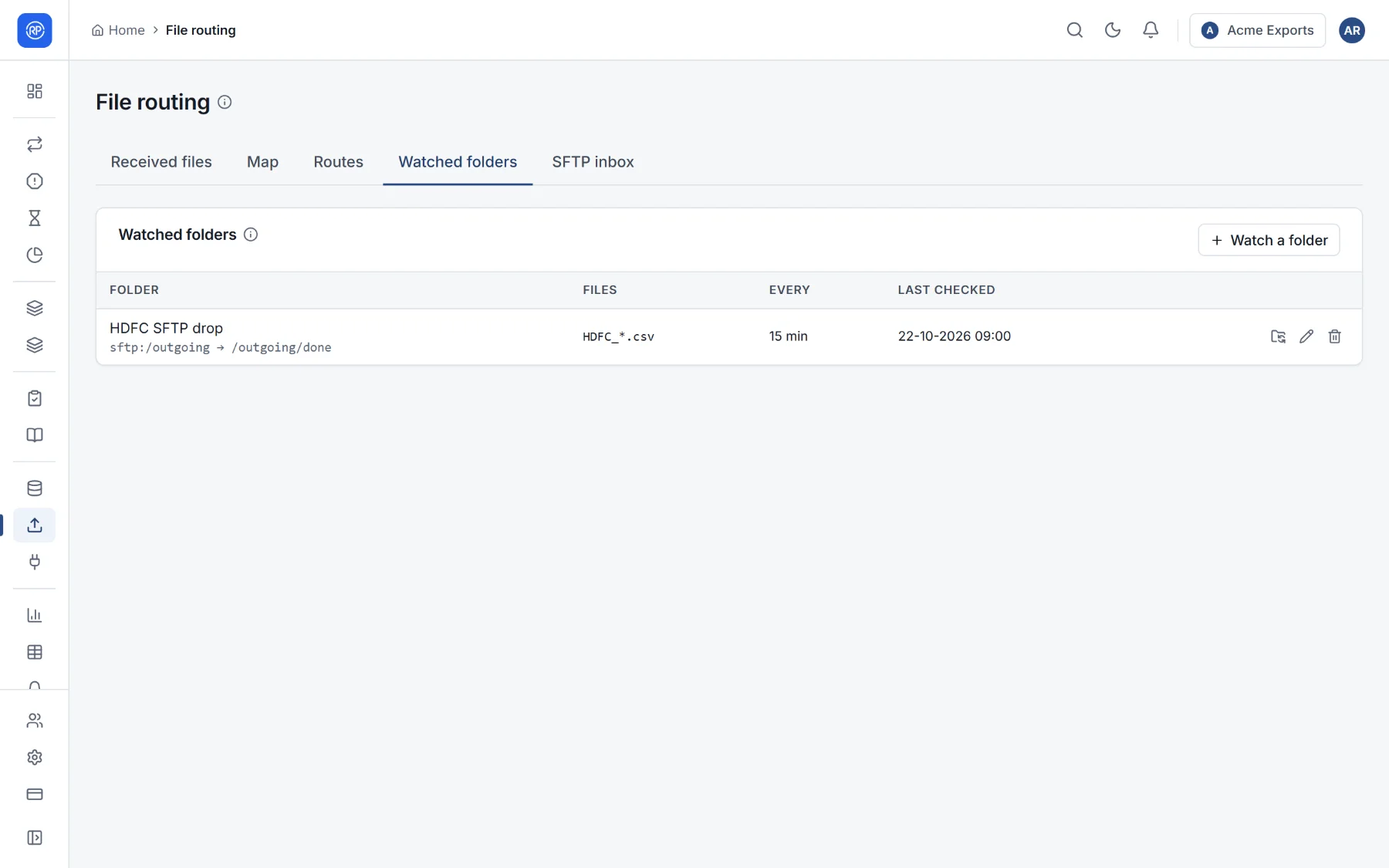
- Save the server’s credentials as a connection first.
- Choose Watch a folder, pick the connection, and give the folder and a file pattern (
*.csv). - Optionally, a folder to move picked-up files to on the same server, so nothing is read twice.
- Set how often to check (in minutes). Check now reads it straight away.
Permissions
Section titled “Permissions”Seeing received files, uploading, downloading, managing routes, the inbox and watched folders are separate permissions (area File routing in the permissions reference).