
Getting around
The navigation
Section titled “The navigation”The navigation on the left groups everything by what you are doing. You only see the parts your role allows.
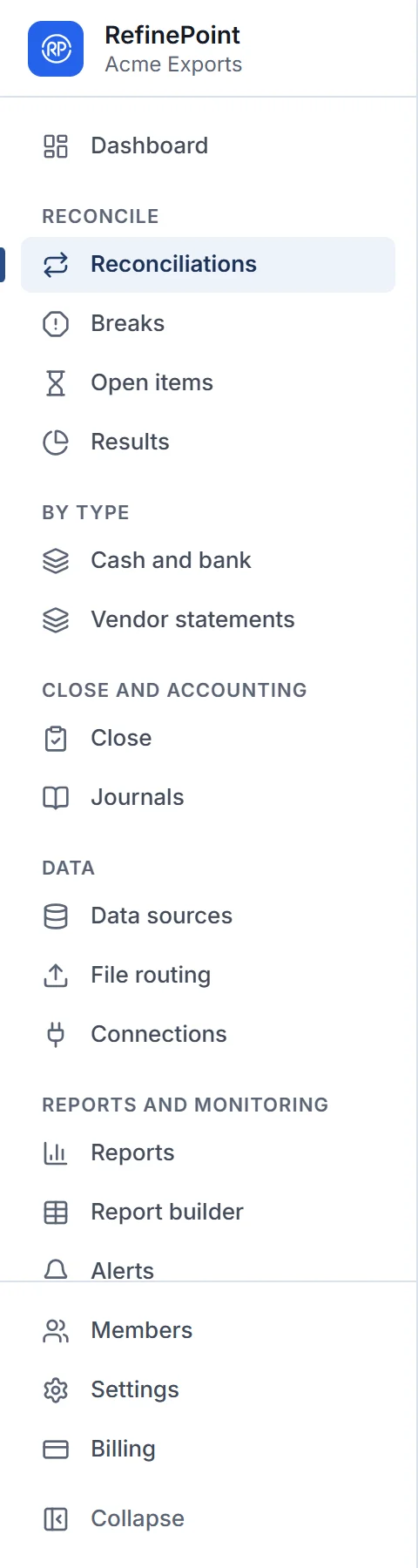
| Section | What is there |
|---|---|
| Dashboard | Your workspace at a glance; dashboards you build or that are shared with you. See Dashboards. |
| Reconcile | Reconciliations, Breaks, Open items and Results. |
| By type | One page per reconciliation type your workspace shows in the menu (for example Cash and bank, Vendor statements), with the results of every reconciliation of that type. |
| Close and accounting | The Close (certifications, checklist, flux, intercompany) and Journals. |
| Data | Data sources, File routing and Connections. |
| Reports and monitoring | Reports, the report builder, Alerts, Scheduled jobs and the Audit log. |
| At the bottom | Members, Settings and Billing. |
Collapse at the bottom shrinks the navigation to icons, to give the page more room. On a phone, the navigation opens from the menu button at the top left.
The top bar
Section titled “The top bar”From left to right:
- Breadcrumb: where you are; select a part of it to go back up.
- Search (Ctrl+K, ⌘+K on a Mac, or /): find pages, reconciliations and data sources by name. Use the arrow keys to move and Enter to open.
- Theme: switch between light and dark.
- Notifications: alerts and things waiting for you, such as a version to approve.
- Workspace: the workspace you are in. Open it to switch to another workspace you belong to.
- Your initials: your profile and Sign out.
Explanations behind the info icons
Section titled “Explanations behind the info icons”Pages keep their explanations out of the way. Wherever you see next to a title or a field, hover over it, focus it with the keyboard, or tap it to read what it does. Screen readers read the explanation with the field.
Your profile
Section titled “Your profile”Your profile, from the menu under your initials, shows your name and email as your sign-in account has them, and your own preferences.