
Slack and Microsoft Teams
Keep approvals moving without anyone watching RefinePoint. Connect a Slack or Microsoft Teams channel and RefinePoint posts short messages there. It is on the Notifications page, on the Slack and Teams tab, and changing it needs the Manage Slack and Teams permission (owners and admins always have it).
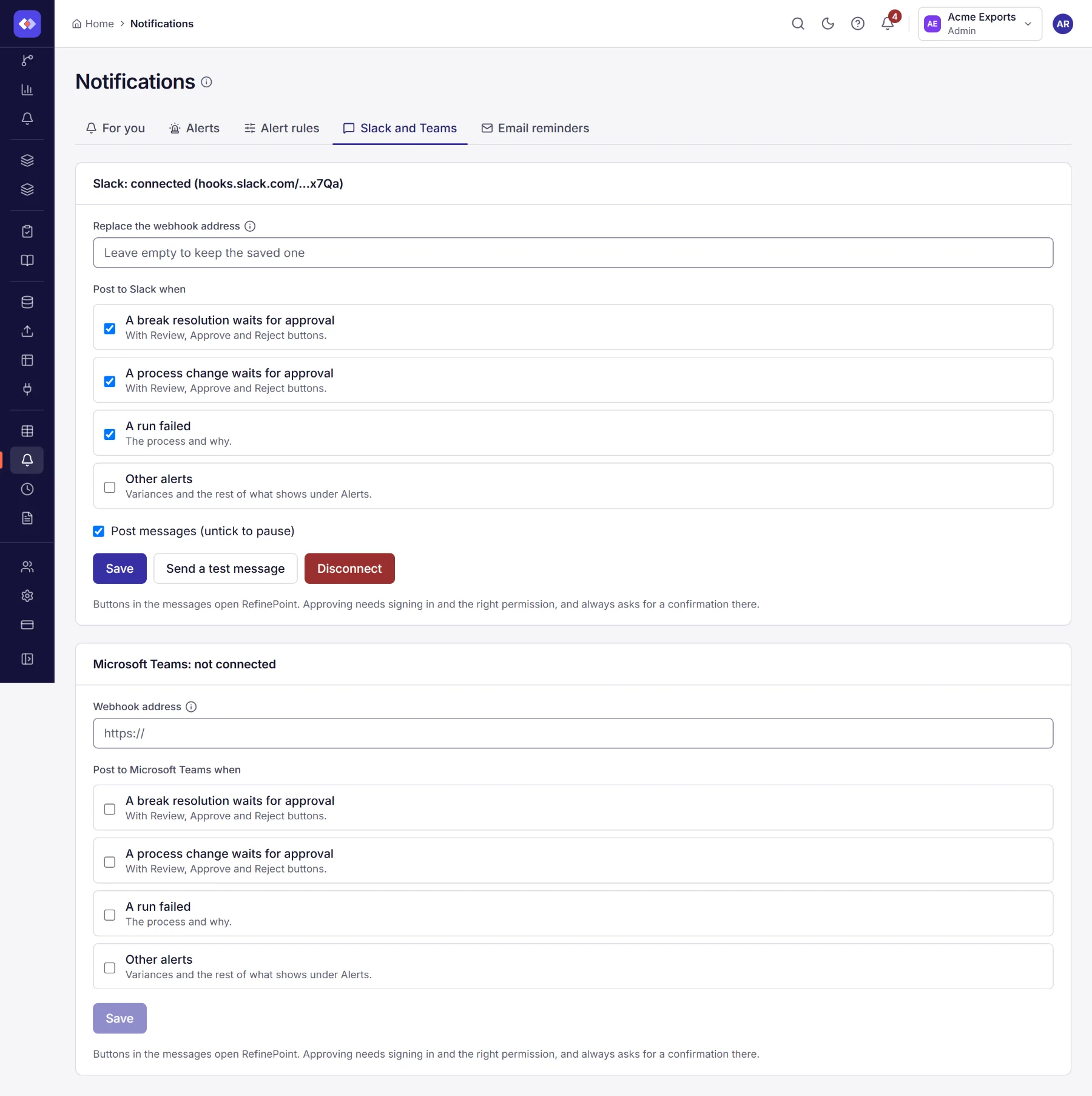
Connect a channel
Section titled “Connect a channel”- In Slack, create an incoming webhook for the channel. In Teams, add a Workflows or Incoming Webhook connector to the channel.
- Copy the webhook address and paste it into Notifications → Slack and Teams.
- Tick what to post, then choose Save.
- Choose Send a test message to check it arrives.
The address is a secret: anyone with it can post to your channel. RefinePoint stores it encrypted and never shows it again; to change it, paste a new one. Disconnect removes it. You can untick Post messages to pause a channel without losing its settings.
What can be posted
Section titled “What can be posted”| Event | The message |
|---|---|
| A break resolution waits for approval | Which breaks, how much, and who proposed it. |
| A process change waits for approval | The process, the version and why it changed. |
| A run failed | The process and what went wrong. |
| Other alerts | The same alerts you see under Alerts. |
Review, Approve and Reject
Section titled “Review, Approve and Reject”Approval messages have three buttons. Each opens RefinePoint:
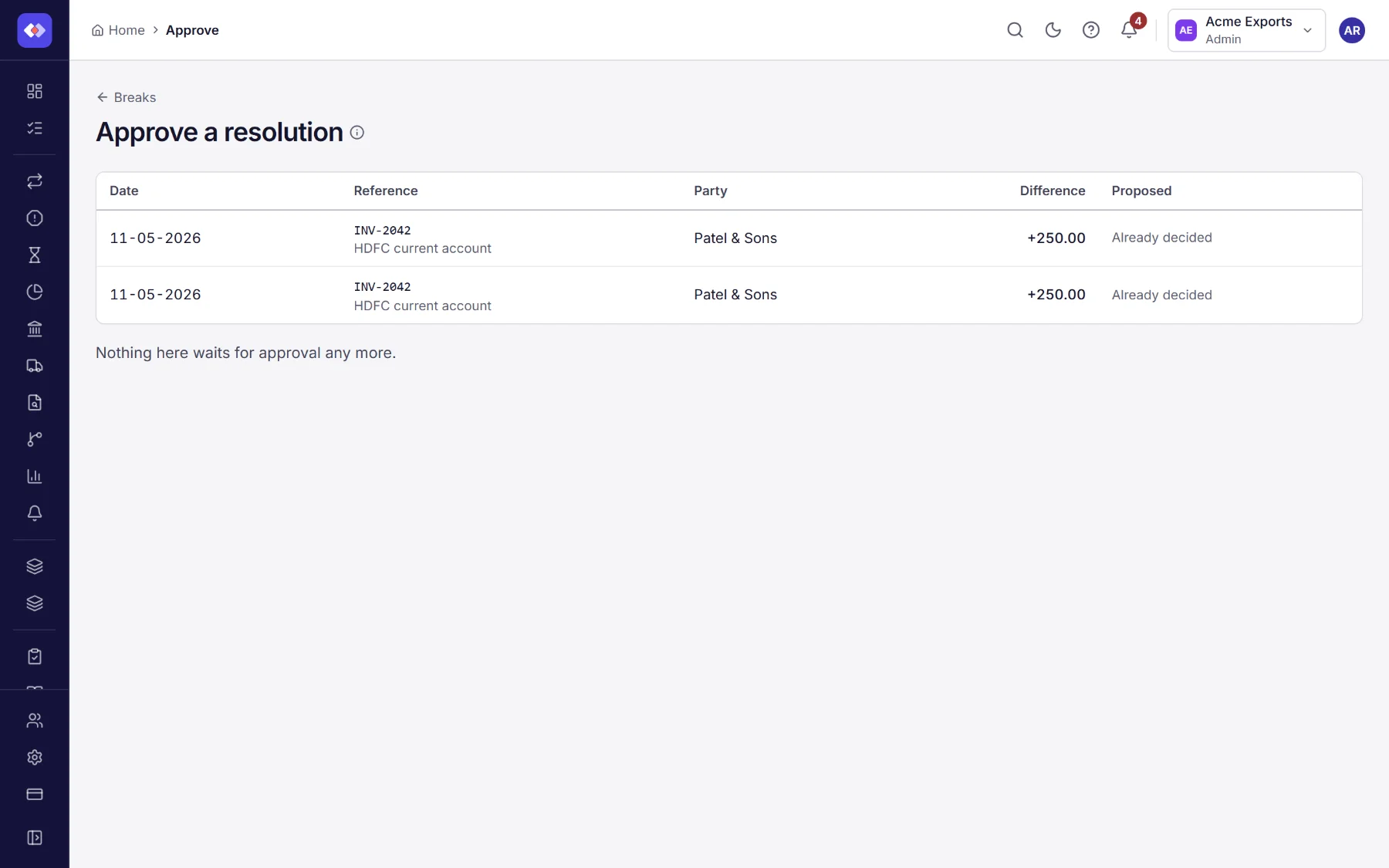
- You must be signed in and hold the permission to decide: Approve resolutions for breaks, Approve process changes for a process. Anyone else sees why they cannot open it.
- Review shows what is waiting. Approve and Reject open the same page with that choice ready.
- Nothing is decided by clicking the link. You always confirm on the page, and a rejection of a process change needs a reason.
- The usual rules still apply: you cannot approve what you proposed or submitted when someone else approves is on.
Links in messages work for 14 days. After that, open the item in RefinePoint instead.