
Super admin console
The console has four tabs: Licences, Invoices, Workspaces and Run queue.
Licences
Section titled “Licences”Issue a licence key to a customer’s person, choose what it gives, copy or email a key again, give a licence to someone else, suspend, reinstate or revoke one.
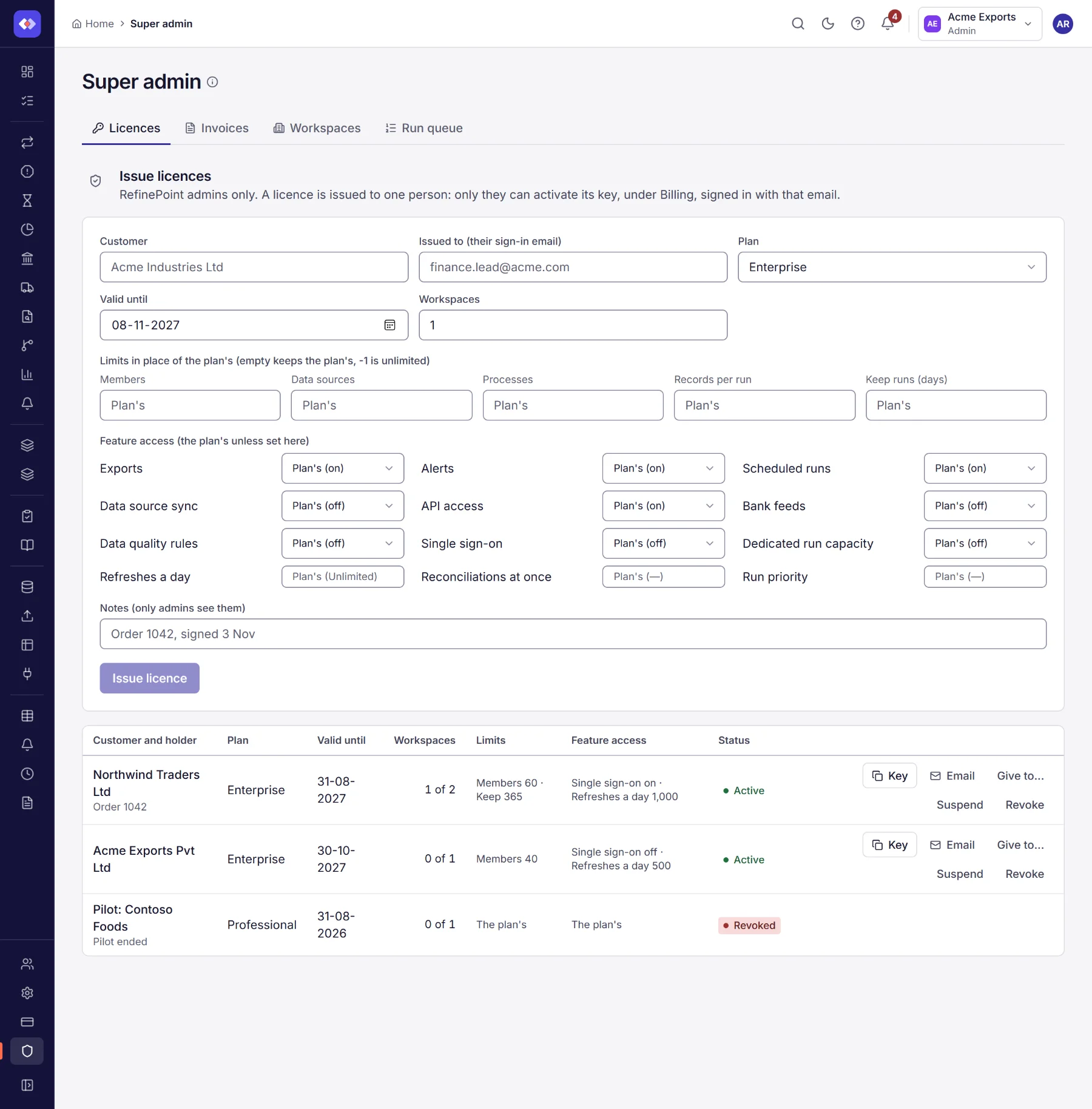
- Enter the customer, issued to (the sign-in email of the one person who may activate it), the plan it gives, the date it is valid until, and how many workspaces may use it at once.
- Limits in place of the plan’s: members, data sources, reconciliations, records per run and how long runs are kept. Leave a limit empty to keep the plan’s; -1 is unlimited.
- Feature access: for each feature, Plan’s (shown with the plan’s own setting), On or Off. Features are exports, alerts, scheduled runs, data source sync, API access, bank feeds, data quality rules, single sign-on and dedicated run capacity (a run queue of the workspace’s own). Refreshes a day sets how many times each person may use Refresh now, Reconciliations at once how many of a workspace’s runs go on at the same time, and Run priority (0 to 100) which workspace’s runs are taken from the queue first. Empty keeps the plan’s; -1 is unlimited.
- Add notes if you like (only admins see them), then Issue licence. The key is emailed to the person it is issued to (when email is set up); it is also shown, to copy.
The list shows each licence’s customer and holder, plan, end, how many workspaces use it, its limits and status. For an active licence:
- Key copies the key again (the same terms always give the same key); Email sends it to the holder again.
- Give to… makes someone else its holder: it gets a new key, emailed to them, and the old key stops working. Workspaces using it keep it.
- Suspend makes every workspace using it read-only at once (seen and downloaded, not changed, nothing scheduled), tells their owners and admins, and archives them after 180 days. The reason you give is seen only by RefinePoint’s admins. Reinstate unlocks them, archived or not, with their data as it was.
- Revoke ends it for good. An active licence’s workspaces go back to their subscription or the free plan; a suspended licence’s stay read-only and are archived as planned.
The customer’s workspace admin checks and activates the key under Billing, Licence keys.
Invoices
Section titled “Invoices”Send an invoice to a customer’s workspace. It appears on their Billing page, and their owners and admins get a notification.
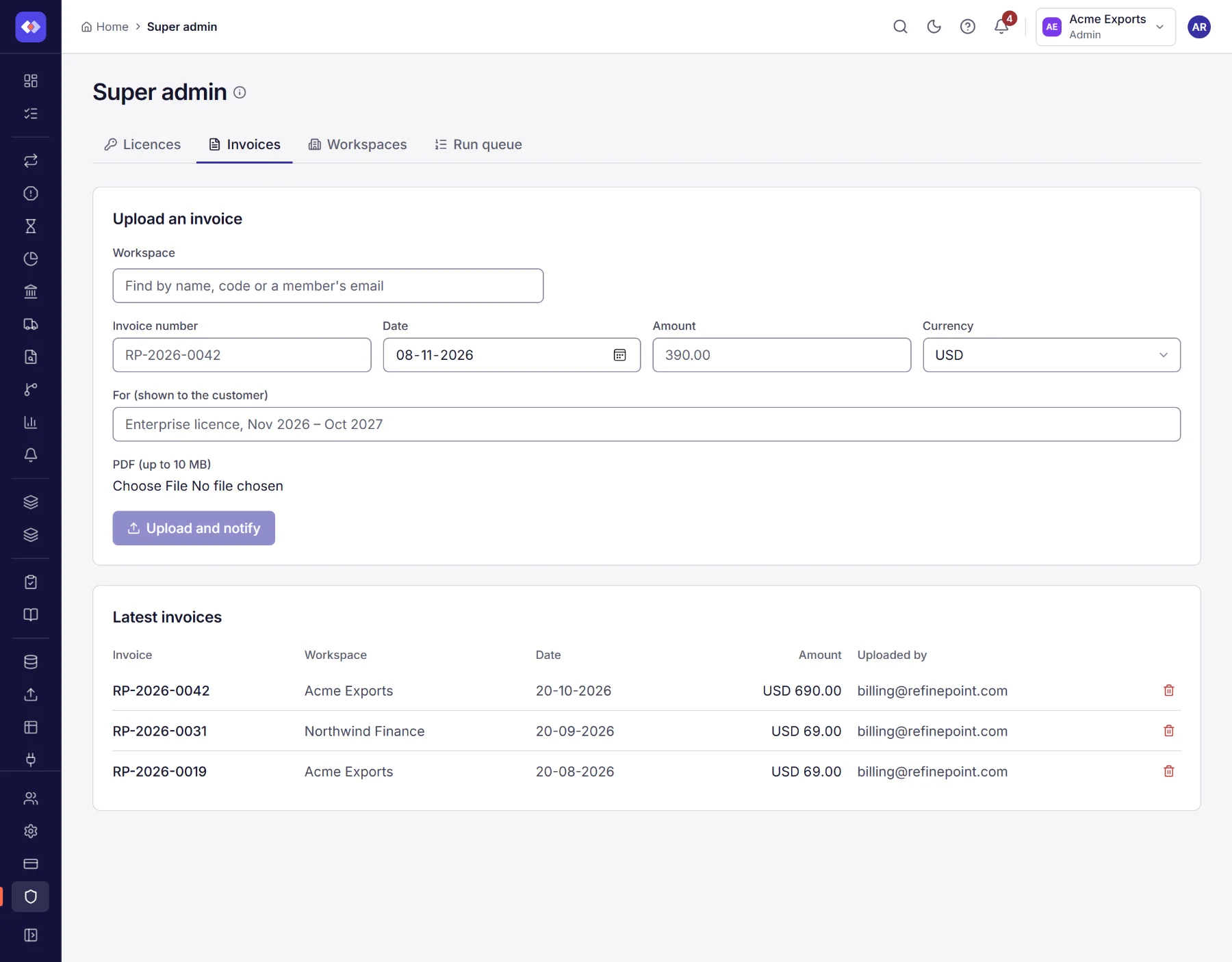
- Find the workspace by its name, code or a member’s email, and select it.
- Enter the invoice number (unique within the workspace), the date (today or earlier), the amount and currency, and what it is for, as the customer will see it.
- Choose the PDF (up to 10 MB), then Upload and notify.
Latest invoices lists what was uploaded, to which workspace and by whom. Withdraw removes one sent by mistake from the customer’s Billing page; upload a corrected one afterwards. Invoices are kept in RefinePoint’s storage.
Workspaces
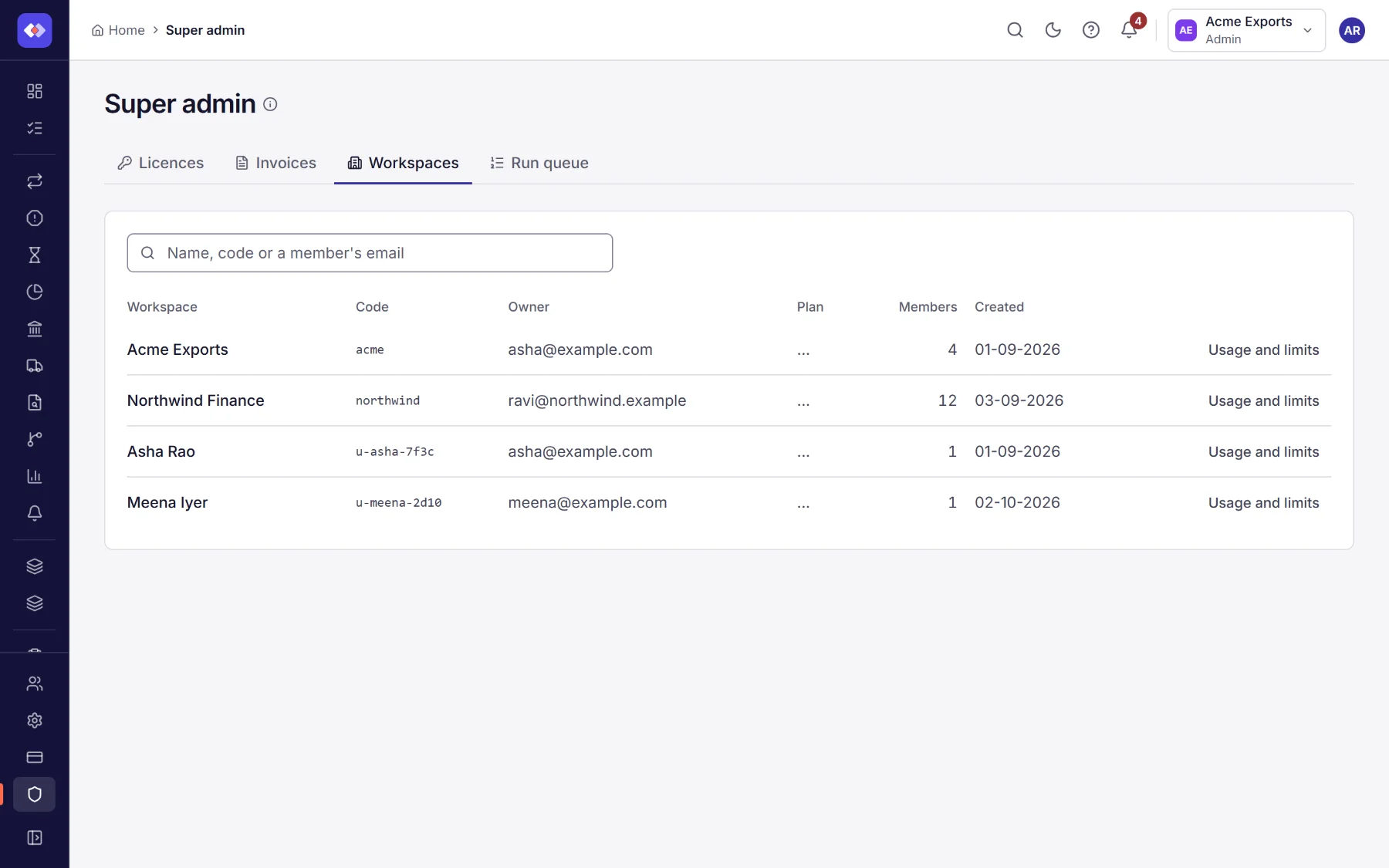
Section titled “Workspaces”Every workspace, newest first: its name and code, owner, plan, number of members and when it was created. Search by name, code or a member’s email.
Open a workspace (or Usage and limits) to see what it has used against its limits today and this month, its reconciliations, data sources and members, and its runs waiting or under way. Give extra reconciliations adds reconciliations it spends one at a time once a daily or monthly limit is reached (they do not expire), with the reason; a negative number takes back ones given by mistake. Every grant is listed with who gave it.
Run queue
Section titled “Run queue”Runs wait in a queue and are taken by the run workers (instances of the run service) that are up. The tab refreshes every few seconds.
- Queues: each queue’s workers, slots, runs running and waiting, and how long the oldest has waited. A queue with runs waiting and no worker says so: its runs wait until a worker that serves it starts.
- Run workers: each worker’s host, the queues it takes runs from, its runs against its slots, memory used and how long it has been up.
- Workspaces: each workspace’s queue, runs at once and priority, and whether each comes from its plan (or licence), an admin’s setting or the default. Set a workspace gives one workspace its own queue, a cap on its runs at once or a priority; higher priority is taken first, and among equals the workspace with fewer runs going on.