
Confirmations from counterparties
Many breaks are really a question for someone outside your company: do you agree this invoice is still unpaid? Instead of chasing by email and spreadsheet, you can ask the counterparty to confirm. They get an email with a link to a page where they agree or disagree with each item, and their answers land on your breaks.
Ask a counterparty
Section titled “Ask a counterparty”- Under Break management, select the breaks of one counterparty. You can also open a single break and choose Ask to confirm.
- Choose Ask to confirm.
- Enter the email addresses to send it to. They are remembered for next time.
- Write a short message and choose the date you need an answer by. Under What they will see you can add a note to any item.
- Choose Send.
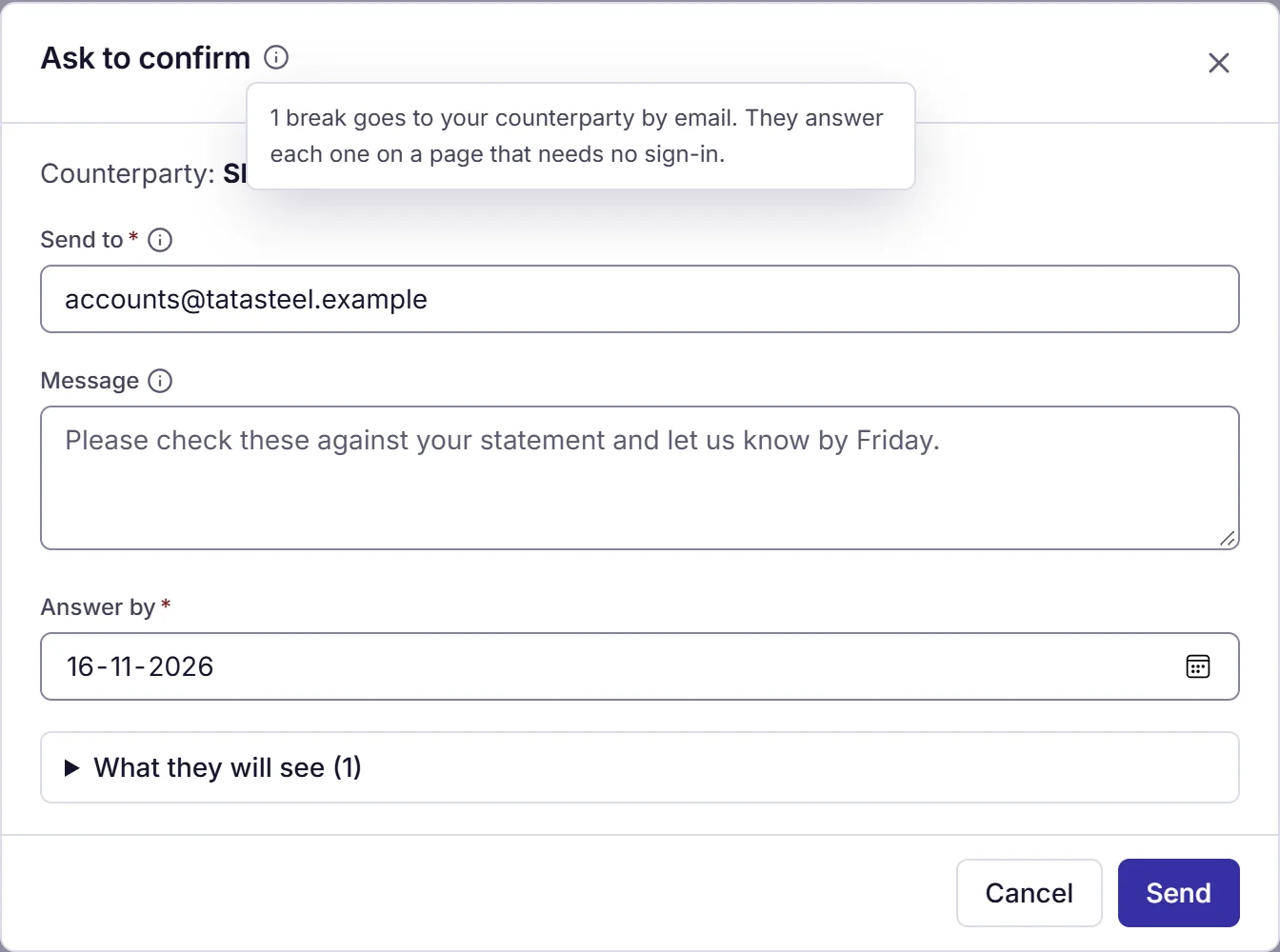
The breaks must all be for the same party. The counterparty sees only the date, reference, amount and your note for each item. Nothing else from your records goes out.
You need the Ask counterparties to confirm permission on the reconciliation. Owners and admins always have it; other roles get it from Roles and permissions.
What the counterparty sees
Section titled “What the counterparty sees”The email carries a private link. The page needs no account.
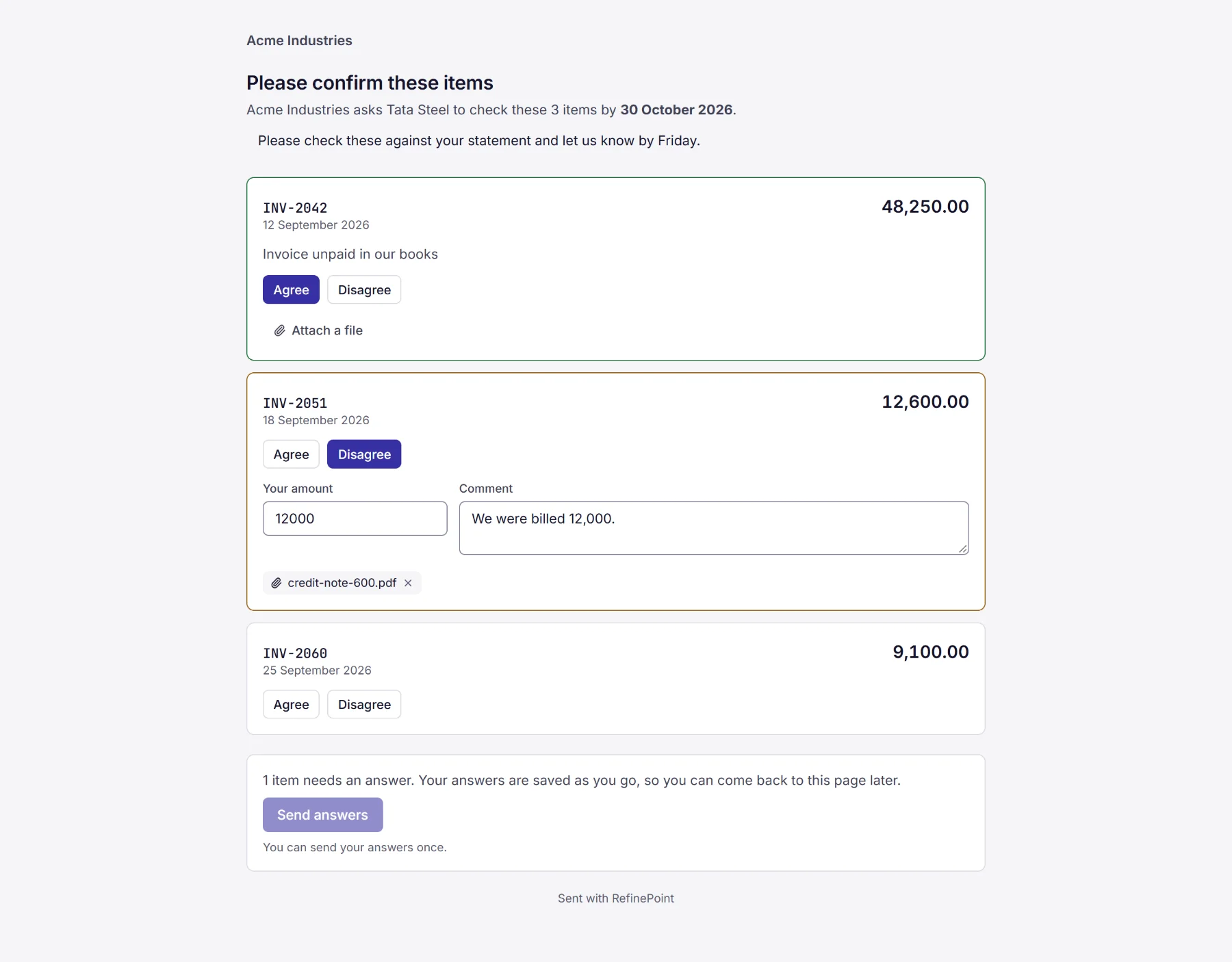
For each item they choose Agree or Disagree. If they disagree they give their amount or a comment, and they can attach a file such as a remittance advice or credit note (PDF, image, spreadsheet, Word or text, up to 10 MB). Answers are saved as they go, so they can close the page and come back. When every item has an answer they choose Send answers. That can be done once.
Where the answers go
Section titled “Where the answers go”When they send their answers:
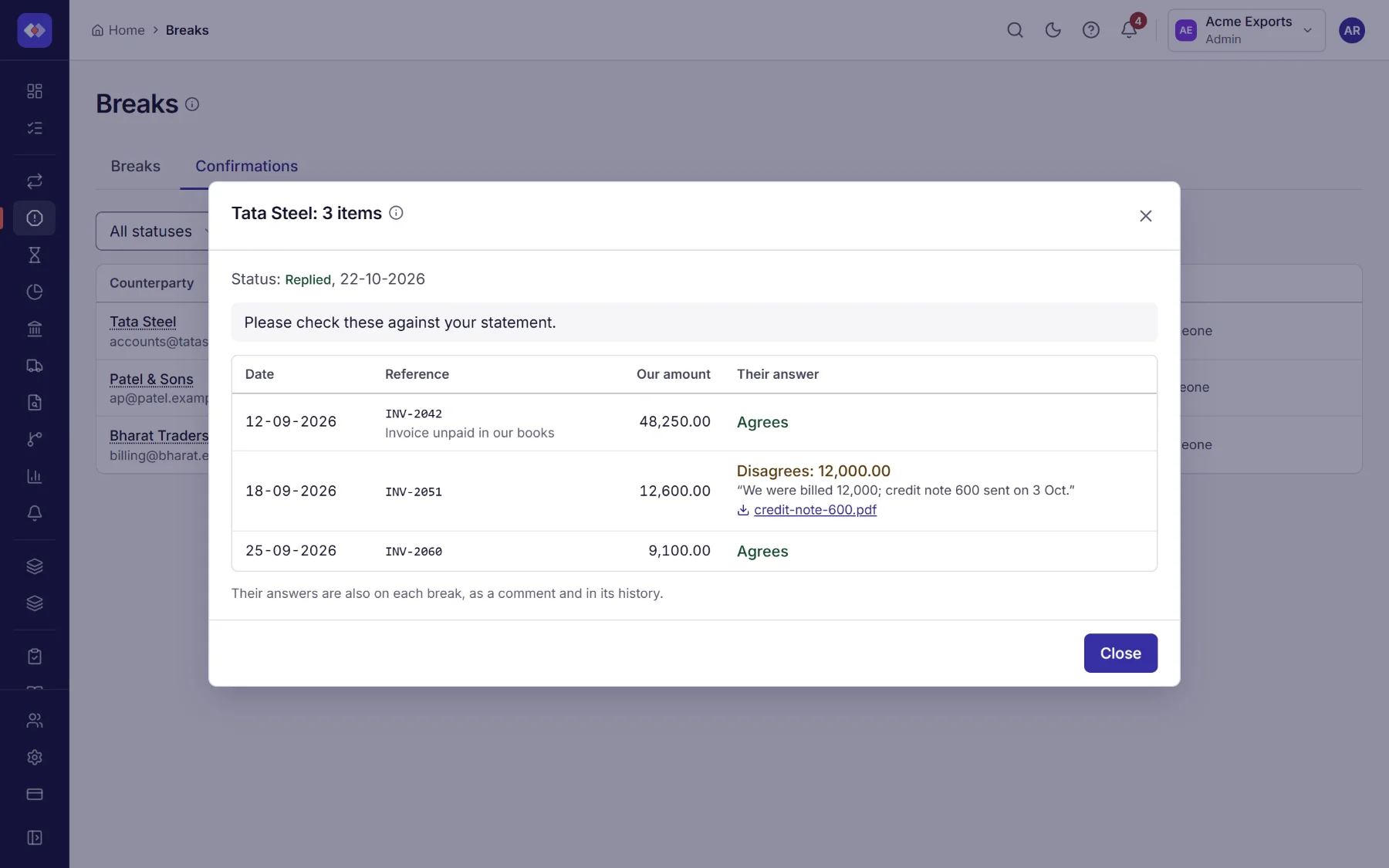
- Each answer is added to its break as a comment, Counterparty replied, with their amount, comment and file, and as an entry in the break’s history.
- The request shows Replied in the list, with how many agreed and disagreed.
- You get an alert, and the person who sent the request gets an email.
Breaks stay open. A person decides what to do with each answer, as for any other break.
The Confirmations tab
Section titled “The Confirmations tab”Break management → Confirmations lists every request and where it stands.
| Status | Meaning |
|---|---|
| Sent | The email went out; the page has not been opened. |
| Opened | The counterparty opened the page and may have saved some answers. |
| Replied | They sent their answers. |
| Expired | Nobody replied before the link ran out. |
| Revoked | You turned the link off. |
Open a request to see each item with the answer, their amount, comment and attached file.
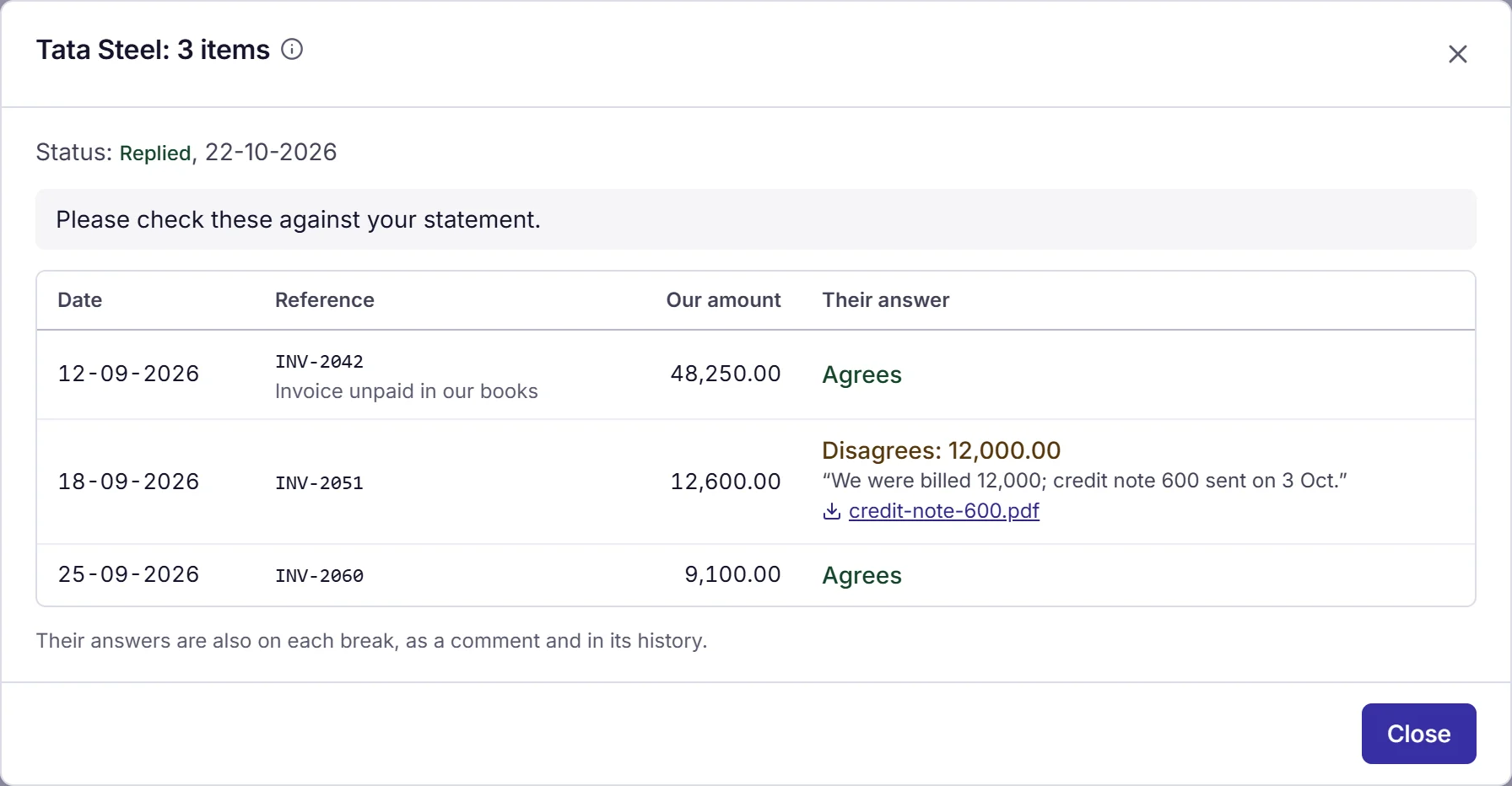
Send again emails a new link (the old one stops working) and can give an expired request a new date. Revoke the link stops it working at once.
Reminders and expiry
Section titled “Reminders and expiry”- If the counterparty has not replied, they get a reminder in the last two days before the date (at most two, a day apart).
- The link works until a week after the answer-by date, then the request shows Expired.
- Every request has its own link. Sending again or revoking ends the earlier link.