
GST and tax reconciliations
RefinePoint has a template for each GST and TDS check. Choose the question, add the files, and the reconciliation is ready to run with every column already mapped.
- On the Reconciliations page choose New process, then GST and tax, guided.
- Choose what you are reconciling. Search works with the names you know:
2B,GSTR-1,e-invoice,26AS. - Add a file for each side. RefinePoint checks each file is the right one and says so if it is not. If you already have a data source made from the same template, pick it instead.
- Choose Create reconciliation, then Reconcile now on its page.
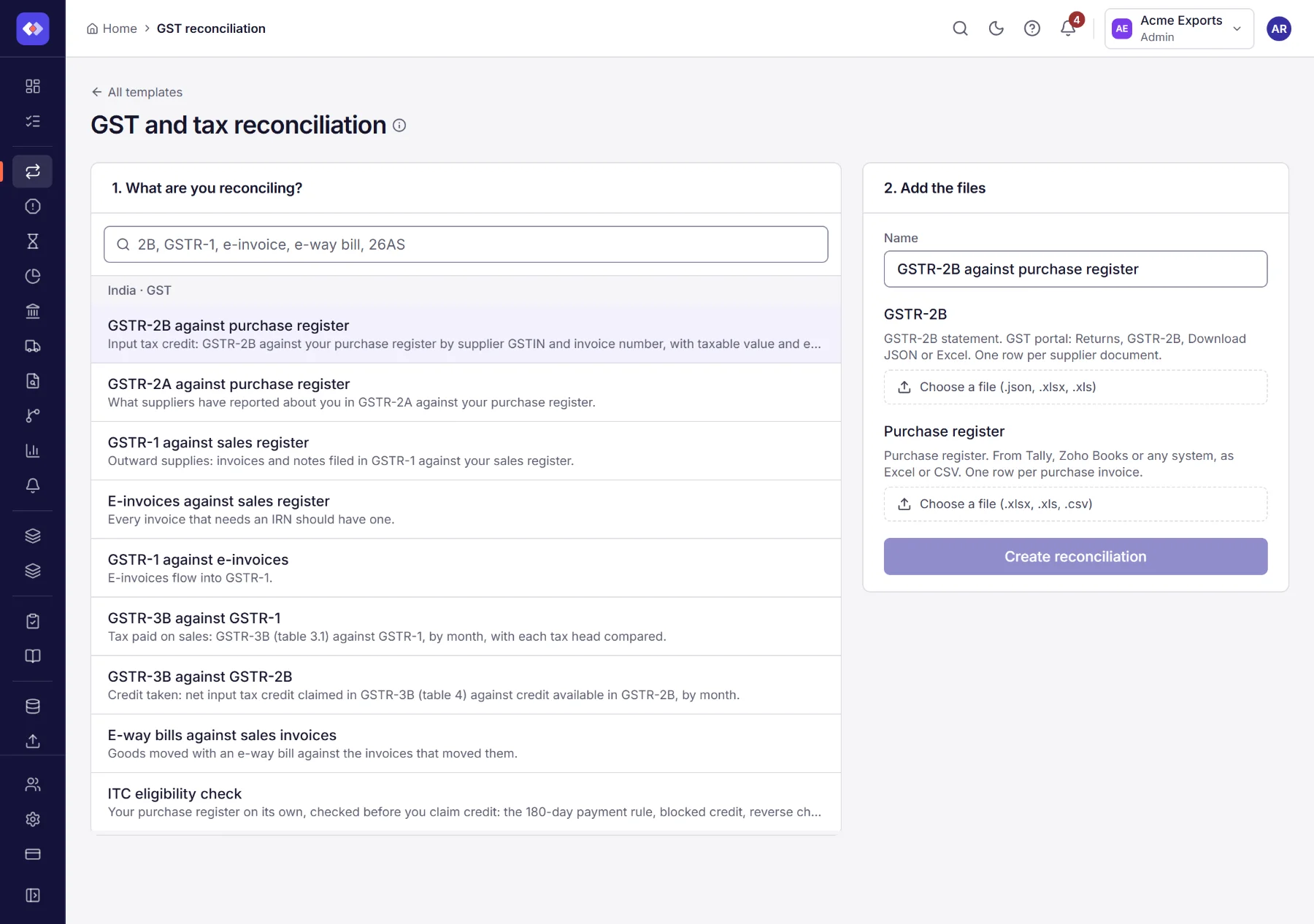
You can also pick any of these from New process in the template list, filtered by India · GST or India · Income tax.
Which template for which question
Section titled “Which template for which question”| Your question | Template | Files |
|---|---|---|
| Can I claim this credit? Which invoices are missing from 2B? | GSTR-2B against purchase register | GSTR-2B, purchase register |
| Which suppliers have not filed? | GSTR-2A against purchase register | GSTR-2A, purchase register |
| Is every sale reported in GSTR-1? | GSTR-1 against sales register | GSTR-1, sales register |
| Does every invoice have an IRN? | E-invoices against sales register | E-invoice list, sales register |
| Does GSTR-1 agree with the e-invoices? | GSTR-1 against e-invoices | GSTR-1, e-invoice list |
| Did I pay the tax I reported? | GSTR-3B against GSTR-1 | GSTR-3B, GSTR-1 |
| Did I claim more credit than 2B allows? | GSTR-3B against GSTR-2B | GSTR-3B, GSTR-2B |
| Is there an e-way bill for every invoice? | E-way bills against sales invoices | E-way bill report, sales register |
| Is the TDS my customers deducted in my 26AS or AIS? | TDS and TCS: Form 26AS or AIS against books | Form 26AS or AIS, TDS receivable ledger |
| Is my purchase register safe to claim credit on? | ITC eligibility check | Purchase register only |
Where to get each file
Section titled “Where to get each file”| File | Where to download it |
|---|---|
| GSTR-1 | GST portal, Returns, choose the period, GSTR-1, Download (JSON). |
| GSTR-2B | GST portal, Returns, choose the period, GSTR-2B, Download (JSON or Excel). |
| GSTR-2A | GST portal, Returns, choose the period, GSTR-2A, Download (JSON). |
| GSTR-3B | GST portal, Returns, choose the period, GSTR-3B, Download the filed return (JSON). Or use a sheet with Month, Table, Taxable Value, Integrated Tax, Central Tax, State/UT Tax and Cess. |
| E-invoices | Invoice Registration Portal (IRP), e-invoice Reports (Excel), or the e-invoice JSON your billing software keeps. |
| E-way bills | E-way bill portal, Reports, EWB generated by me (Excel). |
| Form 26AS | TRACES, View Tax Credit (Form 26AS), choose the year, Export as Text. |
| AIS | Income-tax portal, AIS, the year, Download (JSON or CSV). |
| Purchase and sales registers | Your books: Tally, Zoho Books, Busy, SAP or any other, as Excel or CSV. |
| TDS receivable ledger | The ledger of TDS your customers deducted, from your books (Excel or CSV). |
How matching works
Section titled “How matching works”- Key. Supplier or customer GSTIN, document number and date. Numbers are compared as letters and digits only,
without leading zeros, so
INV/0042isinv-42. A date that differs, or a number written differently, matches as a probable match for you to confirm. - Amounts. Taxable value and each tax are compared; a difference of a rupee or so passes. A difference makes the match partial and names the tax that differs.
- Credit notes count as negative, on both sides, so they net against invoices. In books, a voucher type containing credit note, debit note or return is read as a reduction.
- Carried forward. Documents that do not match this period stay open and match when the other side shows up, which is how timing differences clear.
Reason codes
Section titled “Reason codes”Open items are labelled with the reason accountants use, so you can work through them by reason.
| Reason | Meaning |
|---|---|
| Not in portal | In your books, not on the portal: the supplier has not filed, filed late or used another GSTIN. |
| Not in books | On the portal, not in your books: record it, or reject it if it is not yours. |
| Supplier not filed | GSTR-2A says the supplier has not filed GSTR-1, so the credit waits. |
| Rate or tax head | The tax differs: a different rate, or IGST booked as CGST and SGST. |
| Amendment | An amended document: compare it with the original. |
| Credit note | A credit or debit note: reverse or adjust the credit. |
| Credit not available | The portal marks the credit as not available (its reason is shown). |
| Reverse charge | Credit is available only after the tax is paid. |
| No IRN and Late IRN | An invoice without an IRN, or an IRN generated more than 30 days after the invoice. |
| No e-way bill | An invoice of 50,000 or more with no e-way bill. |
| Not final in 26AS | The booking status is not F: the deductor has not finalised the credit. |
The ITC eligibility check
Section titled “The ITC eligibility check”This one needs only your purchase register. It flags:
- invoices not paid within 180 days of the invoice date (rule 37): reverse the credit and claim it again when paid;
- ledgers that may be blocked credit under section 17(5): motor vehicles, food, club, health, beauty, gifts;
- reverse charge purchases, where credit comes after payment of the tax;
- invalid supplier GSTINs, missing details, invoices booked twice and tax that does not add up;
- invoices past the claim deadline, 30 November after the financial year of the invoice (section 16(4)).
Add a Payment Date column to the register if you can: without it, every invoice older than 180 days is flagged.
Monthly tax checks
Section titled “Monthly tax checks”GSTR-3B against GSTR-1 adds up outward supplies by month and compares each tax head: IGST, CGST, SGST and cess. Credit notes and advances adjusted reduce GSTR-1. Small B2C sales and advances are included by their totals. A month where GSTR-3B is lower than GSTR-1 shows the shortfall.
GSTR-3B against GSTR-2B compares the net credit in table 4(C) with the credit GSTR-2B shows as available, by month. Credit claimed above 2B is at risk.
Form 26AS and AIS
Section titled “Form 26AS and AIS”Both files give one row per deduction, so either can be the first side. Deductions are matched to your TDS receivable by the deductor’s TAN, the amount and the date, several deductions to one entry when you book them together. Use the TDS receivable ledger template for your side.